
Hands-On Practice
The Hands-On Practice section allows users to access and interact with virtual lab environments inside Logstail Academy. These labs provide practical cybersecurity exercises where users can apply theoretical knowledge in real-world scenarios.
Some Academy courses include hands-on components that require users to work inside virtual machines such as Kali Linux, Debian, and Windows.
Where to find it:
Hands-on practice is available inside Academy courses that include practical exercises.
Navigation path
Application route
/learning-paths/{id}/courses/{id}Overview
Hands-on labs enable users to interact directly with virtual environments in a secure and controlled setup. These environments are designed to simulate real-world attack and defense scenarios.
Academy courses guide users through each step to work the provided virtual machines.
Lab authorization
Hands-on labs must be performed only inside the authorized Academy lab environment. Do not use lab instructions, tools, credentials, or techniques against systems outside the permitted training environment.
Initialize Virtual Machines
On the top right of any Academy page, you will find an Initialize Machines button. By pressing it, Logstail subscribers can initialize VMs that will be used exclusively by them for the following 2 hours.
This is an example of an Academy course involving hands-on Port Scanning:
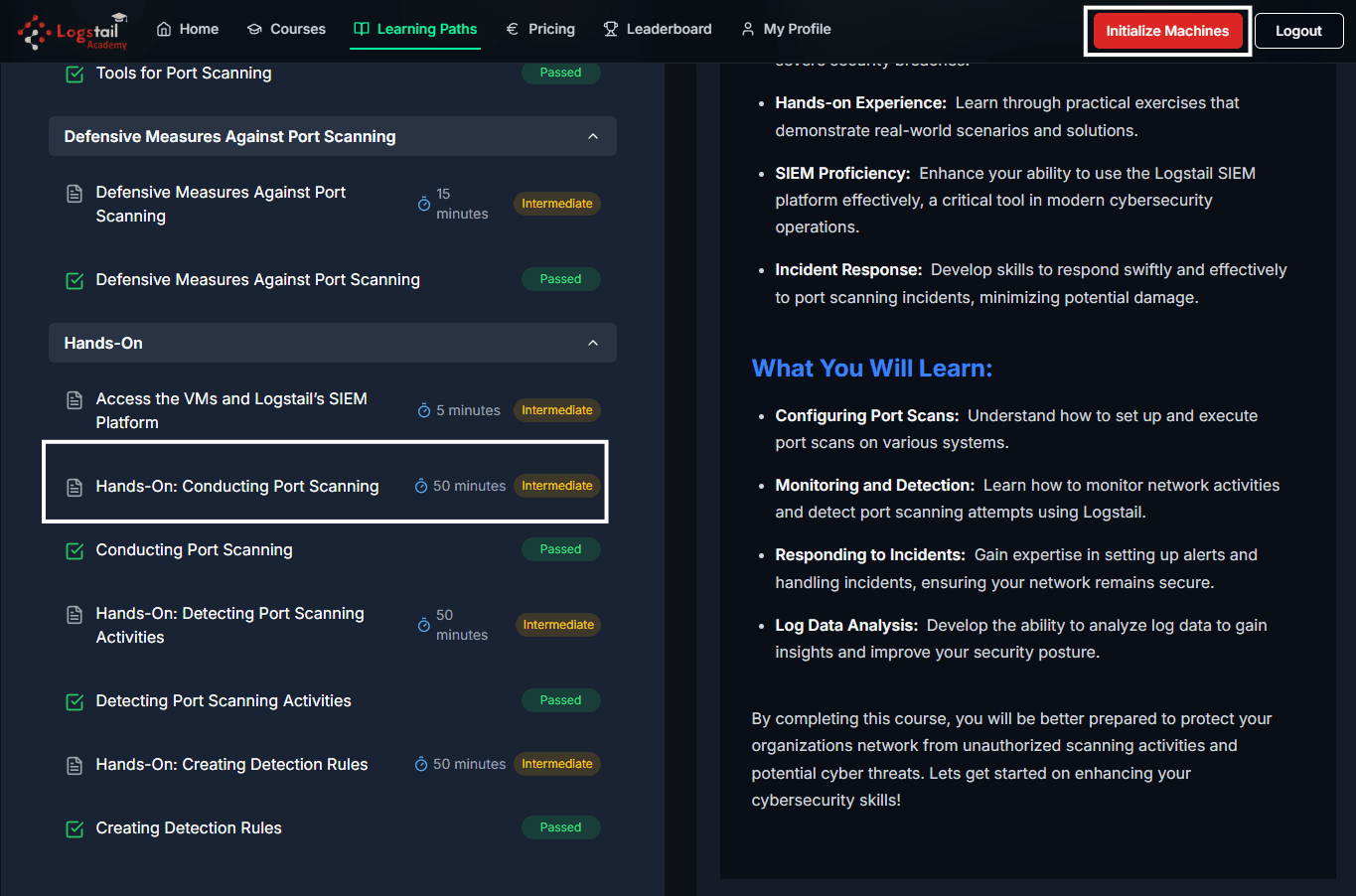
This action starts all required virtual machines, including:
The initialization process may take approximately 2–4 minutes.
Users must wait until all machines are fully ready before proceeding.
View Virtual Machines
Once the loading has finished and your machines are initialized you will have a 2 hour counter of seemless VM access. Click on: View Virtual Machines

After clicking this option, users are redirected to new tab of a user interface that provides browser-based access to the virtual machines.
During this redirection, an authentication page may pop-up for a log in. Make sure you connect to your own Logstail account, and not a lab specific account.
Once you’re on the GUI page with the right account, simply click on either screen to connect to one of your Virtual Machines:
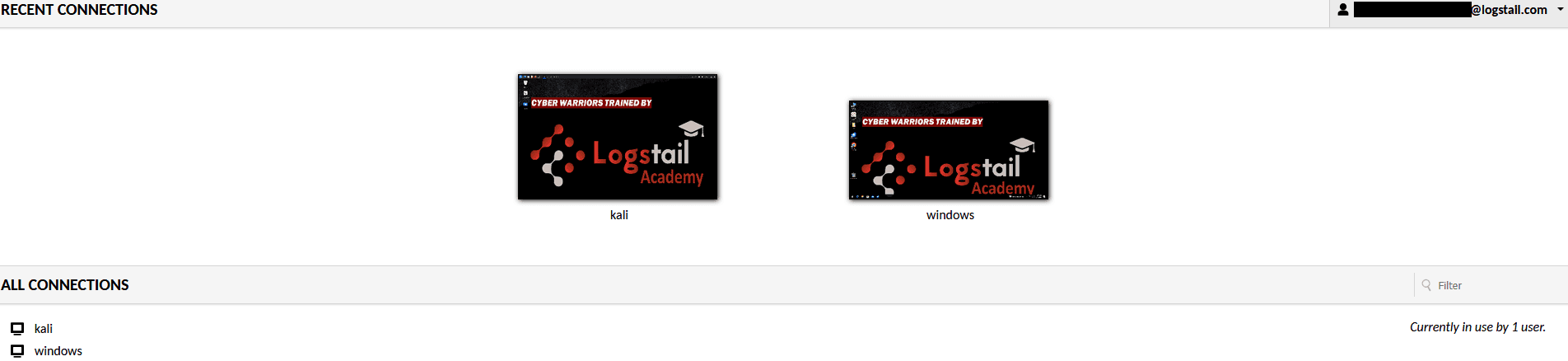
This allows users to interact with the full lab environment experience without installing any additional software.
Accessing the lab SIEM
To Access the lab SIEM, users will be using the Windows 11 Virtual Machine. After clicking on it, you will be connected on the desktop of that machine. Inside this virtual desktop, open a browser of your liking, and connect to http://apps.logstail.local . This will give you a connection warning like the following:
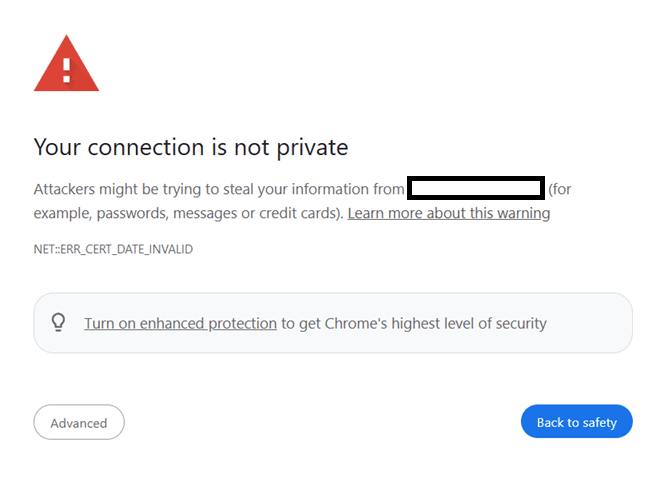
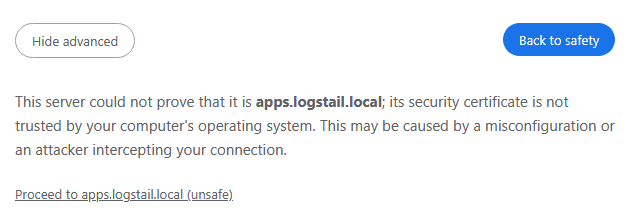
This is expected. Simply click on advanced and Proceed to apps.logstail.local .
You will now be accessing the Logstail platform, a login will pop up. Don’t use your personal account for this login, as it will not have logs associated to it. The labs will always inform you if you need to log onto a specialized Academy account, for access to a particular lab SIEM feed.
You will now have access to the Logstail platform. On the top left menu bar, by clicking on SOAR -> alerts, you will find incoming alerts related to this lab, which will usually rely on live attacks made by the Kali Linux Machine.
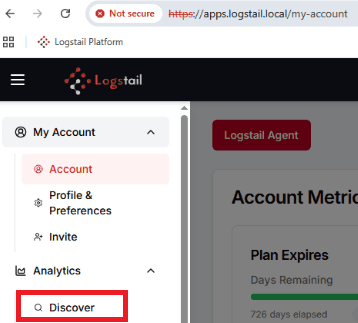
On the left navigation menu, you should also have another tab of Analytics -> Discover.
On this tab, make sure the index is set to logstail-siem-* . This will give you access to all incoming SIEM logs for the Windows machine.
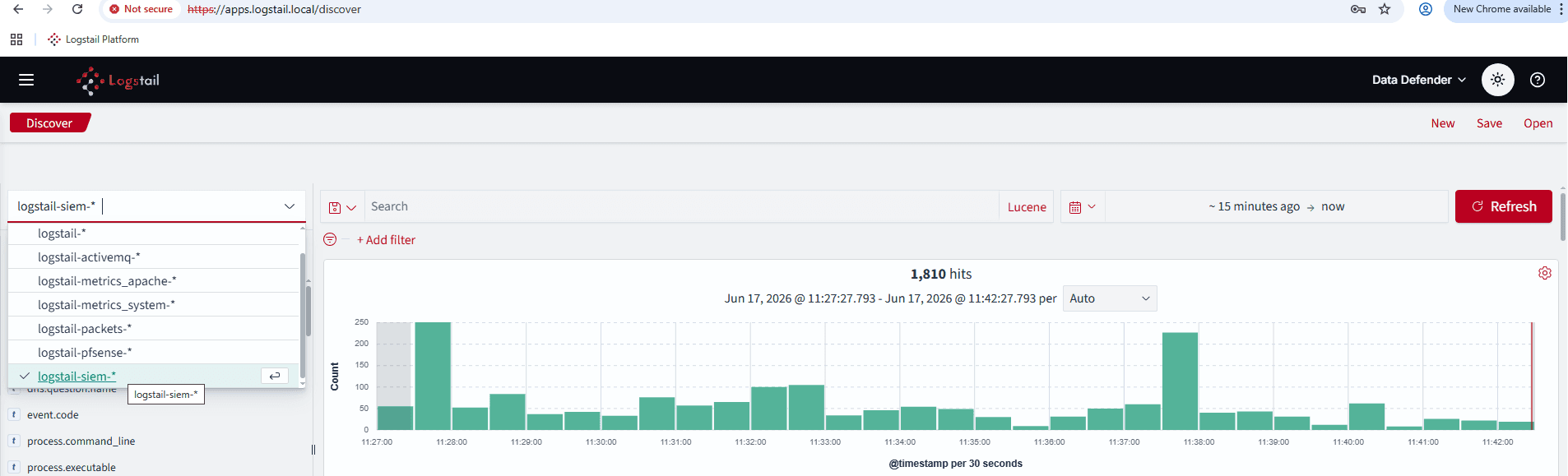
TIP: You may use the packets index
For labs regarding network traffic, such as port scans, you may want to be viewing the logstail-packets-* index. For network scenarios, ensure you select the packets index.
To get accustomed to the SIEM and SOAR, feel free to read up on the following links:
Lab Workflow
Working in the Lab Environment
After the virtual machines are available, use the browser-based lab interface to complete the course scenario.
Use provided lab credentials
Use only the Academy-provided credentials and lab systems unless the course explicitly instructs otherwise.
Use separate VM tabs
Open each virtual machine in a separate browser tab so you can switch between systems during the lab.
Follow the scenario
Complete the tasks exactly as described in the course instructions.
Use the Logstail platform
When instructed, open apps.logstail.local inside the Windows VM and sign in with the provided credentials.
Practice attack simulation
Run only the approved Red Team activities described in the lab scenario.
Monitor and investigate
Use the Logstail platform to monitor generated events, analyze activity, and practice Blue Team workflows.
Stay inside the lab
Do not use lab tools, credentials, or techniques against systems outside the authorized Academy environment.
Stop Machines
When the lab is complete, click on the Stop Machines button of Academy in the top right of the page.
This stops all running virtual environments.
Stop unused lab machines
Stop machines when the exercise is complete, before restarting the lab, when they are no longer needed, or if the environment becomes unstable.
Troubleshooting
VMs are not loading
- 1
Wait a few minutes for initialization to complete.
- 2
Refresh the course page and check the VM status again.
- 3
Stop the machines and click Initialize VMs again if the environment remains stuck.
- 4
Confirm your browser allows the lab interface to open.
Broken or frozen session
- 1
Terminate the session from the settings in the top-right corner.
- 2
Reopen the virtual machine session.
- 3
Restart the affected machine if it remains unresponsive.
- 4
Stop and reinitialize the lab if the full environment becomes unstable.
Platform access issues
- 1
Use the Academy-provided credentials, not personal account credentials.
- 2
Confirm you are accessing apps.logstail.local from inside the Windows VM when instructed.
- 3
Check that the required virtual machines are running.
- 4
Review the course instructions for the correct username, password, and target URL.
Best Practices
Initialize VMs only when ready
Start virtual machines only when you are prepared to begin the lab.
Wait for all machines to load fully
Allow each VM to finish loading before interacting with it.
Use separate tabs for each VM
Keep each virtual machine open in its own browser tab for easier switching.
Keep instructions open while working
Refer to the course instructions as you progress through the lab.
Restart the lab if issues occur
Reinitialize the environment if machines become unstable.
Stop machines when finished
Shut down all VMs after completing the exercise.
Related Pages
Related Pages
| Topic | Description |
|---|---|
| Learning Paths | After enrolling in a Learning Path, users can access all included courses. Completing the path requires finishing every required course. |
| Courses & Quizzes | Explains how Academy courses, lessons, quizzes, completion, and progress tracking work. |
| SOAR Alerts | Review and triage alerts generated by Logstail SOAR. |
| SIEM Logs | Search and investigate raw SIEM log data using Discover. |