
Notification Channels
The Notification Channels page is where users configure how Logstail sends alert notifications when monitors generate alerts.
Notification channels connect detection logic to the people, teams, and systems that need to respond. Instead of hardcoding destinations into monitors, users define reusable delivery paths and assign them where needed.
Where to find it
Open the main navigation menu and go to:
Navigation path
Application route
/soar/notification-channelsWho uses this page
The SOAR Notifications page is designed for notification channel management, an important tool for:
SOC engineers
Configure alert delivery paths and validate notification behavior.
Administrators
Manage SMTP profiles, credentials, and reusable notification targets.
Detection engineers
Attach notification channels to monitors and tune alert routing.
Incident response teams
Receive alerts through the channels used during triage and escalation.
What this page is used for
Use Notification Channels to manage alert delivery and escalation paths.
Route alerts
Send alerts to the correct teams or systems.
Configure email delivery
Setup SMTP profiles for outbound alerts.
Create reusable channels
Define destinations once and reuse them across monitors.
Integrate systems
Send alerts to external systems such as Slack, webhooks, or APIs.
Support escalation
Ensure critical alerts reach the right responders.
Maintain delivery paths
Update and clean notification targets.
How Notification Channels Work
A typical alert delivery flow works like this:
Page Overview
The Notification Channels page is split into two main areas:
- SMTP Profiles (email senders)
- Notification Targets (destinations)

The page allows you to:
SMTP Profiles
The SMTP Profiles section defines how Logstail sends outgoing email alerts.
Use SMTP profiles when alerts must come from approved mail servers or service accounts.
Add an SMTP Profile
Use Add SMTP Profile to configure a new sender.
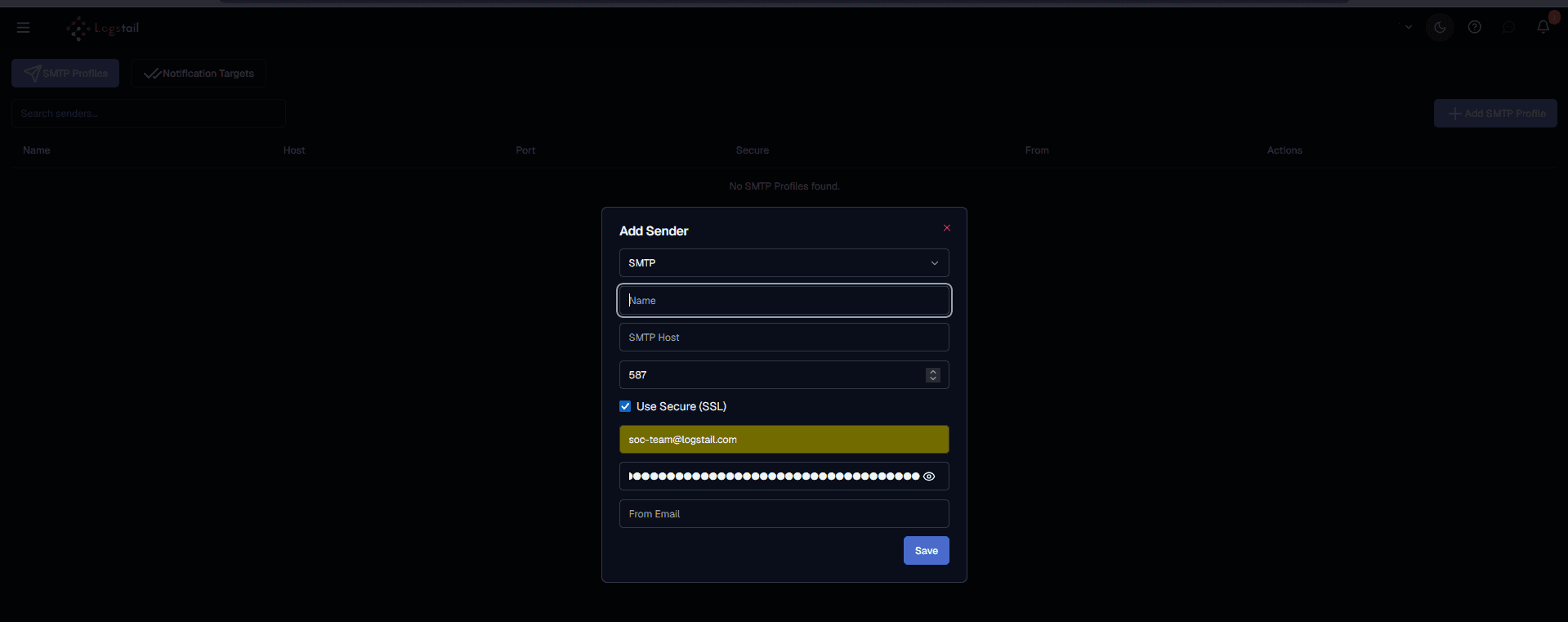
Manage SMTP Profiles
You can update or remove profiles as needed.
Important
Before deleting an SMTP profile, confirm that no monitors or channels depend on it.
Notification Targets
Notification targets define where alerts are sent.
Examples include:
When to Create a Notification Channel
Create a notification channel when alerts need a reusable delivery destination.
SOC alert routing
Create a channel for alerts that should go to the SOC queue or on-call team.
Critical escalation
Create a dedicated channel for critical or high-severity detections.
Team ownership
Create separate channels for teams that own different systems or environments.
Webhook automation
Create webhook targets when alerts should be sent to external automation or ticketing systems.
Environment separation
Use separate channels for production, staging, and testing notifications.
Compliance visibility
Create channels for alert delivery paths that need to be documented or reviewed.
Add a Notification Channel
Use Add Channel to create a new destination. Define your target channel by naming it, add the service type and provide a unique ID for the destination:
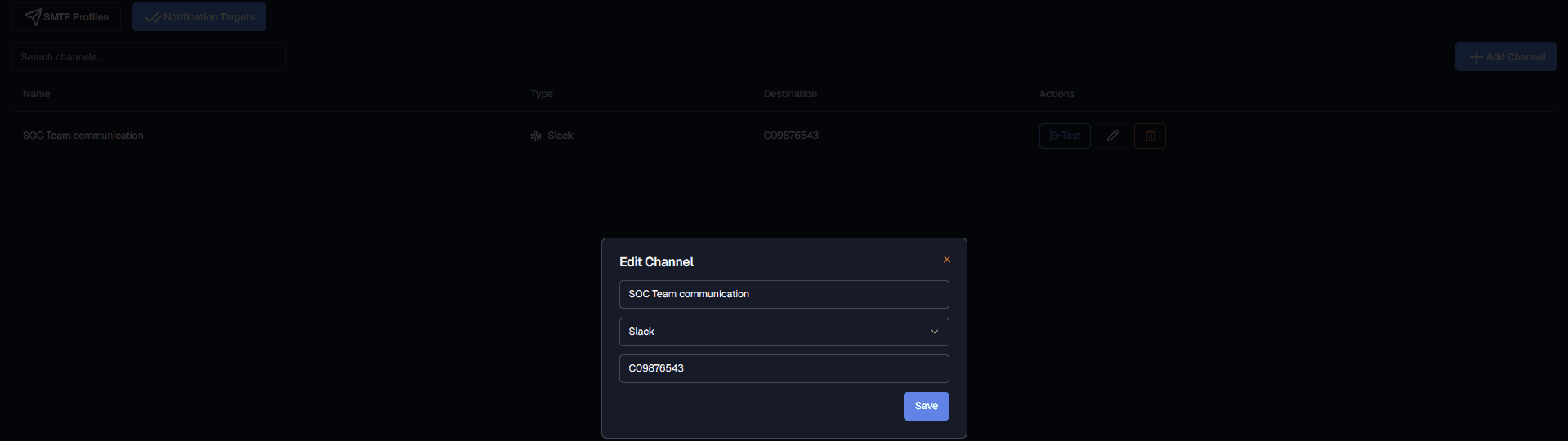
Edit a Notification Channel
Use edit when destinations or ownership change from the pencil icon on the rightmost part of the channel of interest.
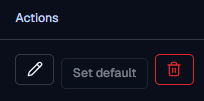
Modify and update the details by using the Save button.
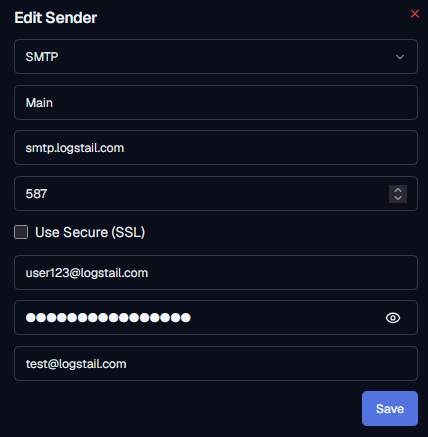
Editing is useful when the:
SMTP Profiles vs Notification Targets
SMTP profiles define how email is sent. Notification targets define where alerts are sent.
SMTP Profiles and Notification Targets
| Area | Purpose | Example |
|---|---|---|
| SMTP Profile | Defines the mail server, sender identity, TLS settings, and credentials used for outbound email. | smtp-alerts-prod |
| Notification Target | Defines the destination that should receive alert notifications. | soc-oncall@example.com or #soc-alerts |
Security Notes
Credential protection
SMTP credentials and webhook tokens should be treated as sensitive secrets. Store them only in approved configuration fields and rotate them according to security policy.
Recommended Workflow
Troubleshooting
Email is not delivered
- 1
Check SMTP host, port, connection type, TLS, and sender address.
- 2
Verify SMTP username, password, token, or service account credentials.
- 3
Confirm the mail relay allows outbound messages from Logstail.
- 4
Check whether the sender address is allowed by the SMTP provider.
- 5
Review spam, quarantine, and mail security policies.
Webhook or Slack delivery fails
- 1
Confirm the destination URL or Slack webhook is active.
- 2
Check whether the endpoint accepts requests from Logstail.
- 3
Verify required authentication, headers, or payload format if applicable.
- 4
Confirm the external service is available and not rate-limiting requests.
Alerts are generated but not sent
- 1
Confirm the monitor has a notification channel assigned.
- 2
Check that the selected notification target still exists.
- 3
Verify SMTP profile or webhook configuration.
- 4
Confirm alert conditions are actually generating notifications.
- 5
Check whether the channel was edited, deleted, or disabled.
Notifications go to the wrong destination
- 1
Check the notification target assigned to the monitor.
- 2
Verify the recipient email, Slack channel, or webhook URL.
- 3
Review naming conventions to avoid selecting the wrong channel.
- 4
Update the monitor configuration if the wrong channel is attached.
Best Practices
Use clear naming
Name channels in accordance to your team and purpose.
Test regularly
Validate delivery paths frequently to prevent a loss of alerts and security gaps.
Separate environments
Use different channels for prod and staging.
Avoid alert spam
Do not route all alerts everywhere and check for duplicate noise.
Clean old channels
Remove unused or unwanted destinations.
Document ownership
Track who maintains each channel for accountability.