
SOAR Playbooks
The SOAR Playbooks page is used to build, import, manage, and operate response workflows.
Where to find it
Navigate through:
Navigation path
Application route
/soar/playbook-automationWhat Playbooks are used for
Automate incident response
Execute repeatable actions without manual steps.
Standardize workflows
Ensure consistent handling of alerts and incidents.
Reduce manual effort
Save analyst time by automating repetitive tasks.
Connect integrations
Use runners and integrations to perform actions across systems.
Track executions
Monitor job history and playbook outcomes.
Reuse workflows
Build modular, repeatable automation steps.
Main View
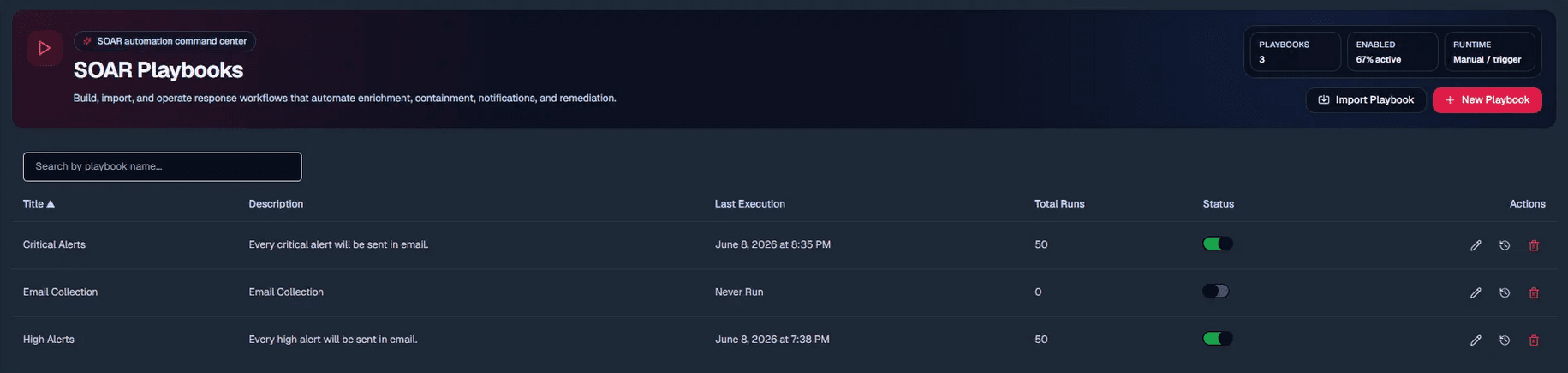
The page shows your Playbook Table. Selecting a Playbook directs you to the Playbook Builder.
Playbook Table

The Playbook Table holds all of your Playbooks, with an activation button, history of past runs, an edit operation, and a delete button.
Playbooks on the table hold the following fields:
Create a Playbook
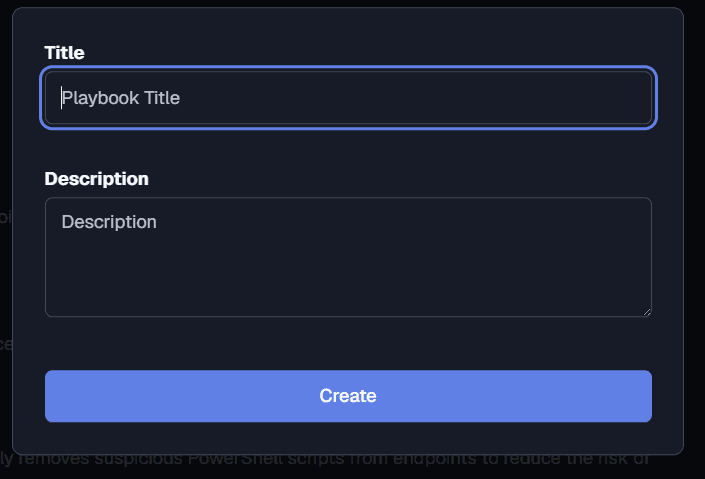
After pressing the New Playbook button, you can insert a Playbook Title and Description to add a Playbook to the table. Once you’ve added both fields, click Create.
Playbook Status
Playbooks hold two status types. Active and Inactive, these describe if the Playbook service is enabled or not.
Row Actions
The Playbooks table has an Actions columns, where users can modify each the Playbook and read their run history.

Edit
Modify logic in the Playbook Builder.
Execution history
Review past runs.
Delete
Remove playbook.
Playbook Builder
The Playbook builder is the interface which defines Playbook logic and execution. It provides you the option to establish a structure of a trigger rule and an automated response (typically in regards to risk mitigation).
Playbook logic is made on the Workflow canvas, which utilizes Building blocks that function as nodes. Two mandatory nodes, a start node an end node; and three optional nodes, a trigger node, a conditional node, and an action node. They usually follow the order of the screenshot below:
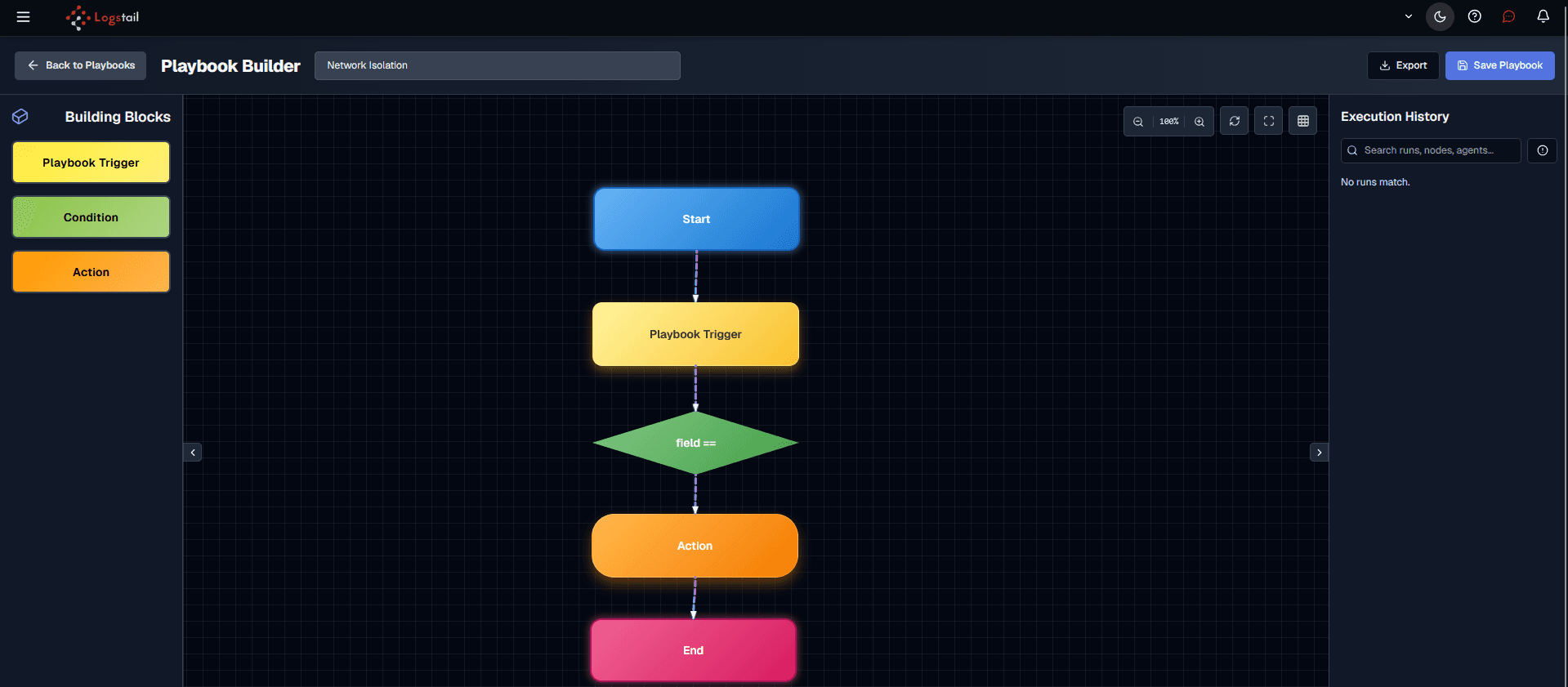
On the right of the page, playbooks document their Execution History with the actions made and respective timestamp. This panel provides a searchbox for easier and faster navigation.
After building your Playbook logic, you should click on Save Playbook. Playbooks can also be exported in json format using the Export button on the top right. These can later be used for Playbook imports on the main Playbook Table.
Altogether, the main components of the builder page are these:
Example Playbook
For demonstration, a SOC Team can use playbooks to send notifications and isolate the endpoints from the network if certain conditions are met.
In this example, Playbooks will monitor if an alert type is of Critical severity (5). If the alert triggerred corresponds to a Potential Remote Powershell Session Initiated (as defined in the Monitors page), then the playbook will check for the condition node. This node will ensure that the process executable is not “C:\Windows\System32\svchost.exe” (To handle potential FP noise) , AND that the agent.name is equal to “STORAGE” (To specify for a particular crucial host in the network).
Once all of these conditions are verified, the playbook will initiate its actions and send a notification, this will be sent to an email that is defined in the contacts page (you can also use one of the integrated services in the Integrations page after setting up credentials for that service). And simultanesouly, the host will be isolated from the network.
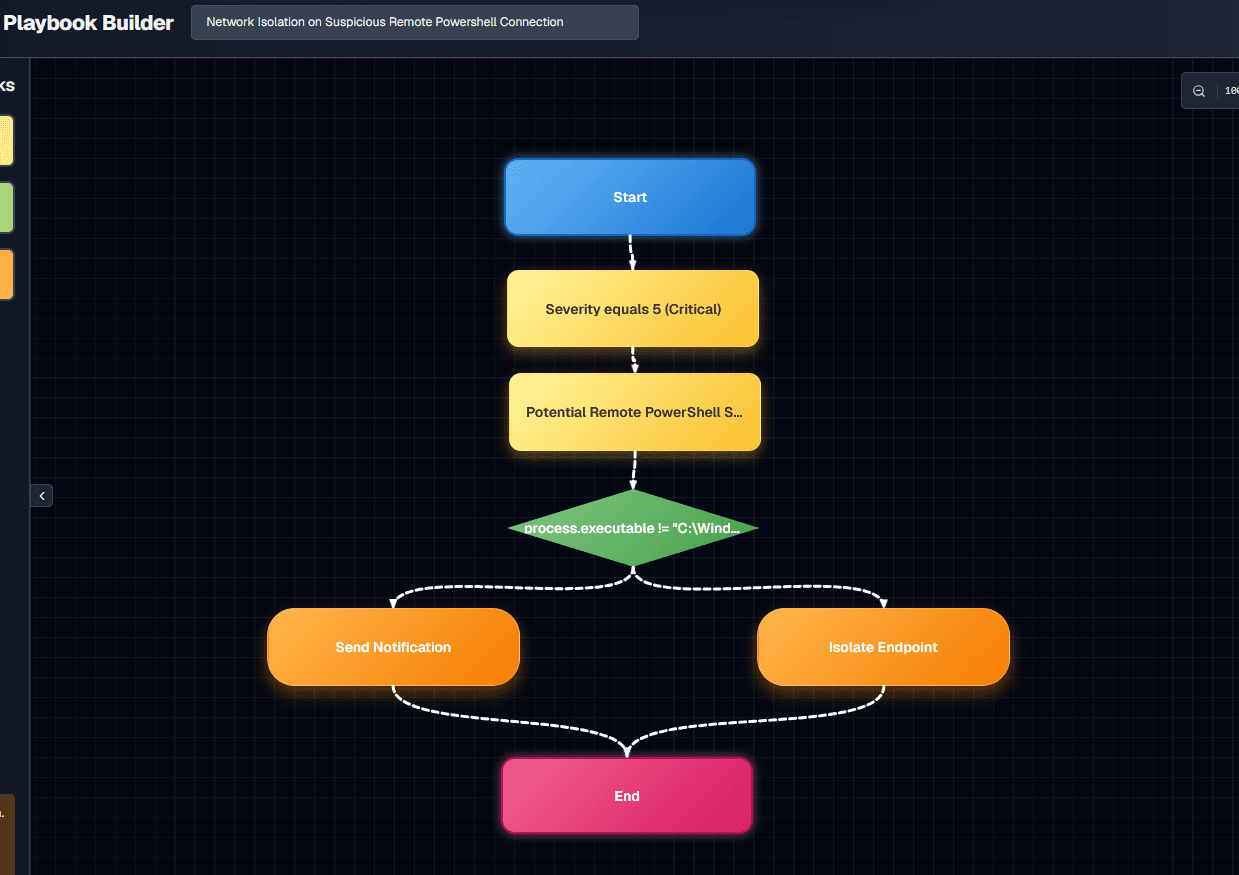
Workflow of this Playbook:
Using Integrations
You can connect external integration to your playbook with this type of workflow:
Trigger Types
Trigger nodes follow 4 types of triggers:
Workflow
Below is a SOC workflow for Playbooks:
Troubleshooting
Playbook not running
- 1
Check if the Playbook status is active and enabled
- 2
Verify the Playbook trigger in the builder
- 3
Confirm Playbook Builder workflow path
Action fails
- 1
Verify your credentials
- 2
Refresh the page
- 3
Look for a status message on the bottom right of the page
Runs too often
- 1
Tighten the Playbook Builder conditions to produce less triggers
- 2
Reduce broad matching in your Playbook workflow
Best Practices
Use clear names
Use precise and consistent naming to describe the Playbook behavior.
Start simple
Add safe actions at first and expand along with your knowledge.
Control risk
Use precise conditions for accurate risk mitigation.
Test workflows
Always validate before production, as Playbooks can be very impactful in either a very positive or harmful manner.
Review history
Monitor runs, double check that everything is working as intended.
Related Pages
Related Pages
| Page | Description |
|---|---|
| Integrations | Configure and manage connections between Logstail's SOAR and external security tools and services. |
| Monitors | Create and manage alerting rules that evaluate security and operational data. |
| Alerts | Create and manage alerting rules that evaluate security and operational data. |
| Notification Channels | Configure how alerts are delivered to users, teams, and external systems. |
| Contacts | Manage people and teams involved in security operations and incident response. |