
Invite Users
The Invite Users page allows administrators to invite new users to the Logstail stack and manage visible users or invitations.
This page is part of account administration and is used to control who can access the platform and what level of access they receive.
Where to find it
Open the main navigation menu and go to:
Navigation path
Application route
/inviteMulti-Tenant Admin Access
If a user is invited to more than one stack, Logstail treats that user as a multi-tenant user.
After signing in, multi-tenant users can access the Multi-Tenant Admin page, where they can view and switch between the stacks they are allowed to manage.
Open the Multi-Tenant Admin page to manage users who have access to more than one stack.
Navigation path
Application route
/multitenant-adminUse this page when the user needs to:
When this page appears
The Multi-Tenant Admin page is available only when the signed-in user has access to more than one stack.
Operational note
The Invite Users page is part of account administration and is restricted to administrators. It controls user access, role assignment, and stack visibility. Before inviting users, confirm role requirements and access scope to ensure proper least-privilege access and avoid unnecessary permissions across the environment.
Who uses this page?
The Invite Users page is intended for role-based user administration.
Administrators
Invite users, assign roles, and manage visible invitation records.
Access restricted
Normal users do not have invite-user controls enabled. If this page or action is not visible, the current account may not have the required administrator permissions.
What this page is used for
Use Invite Users to:
Main Sections
User Invitations Header
The page header identifies the invitation area and provides top-level actions, such as refreshing invitation data and opening the new invitation dialog.
Refresh Button
Reloads the visible invitation and user list after sending invitations or when verifying whether invitation status changed.
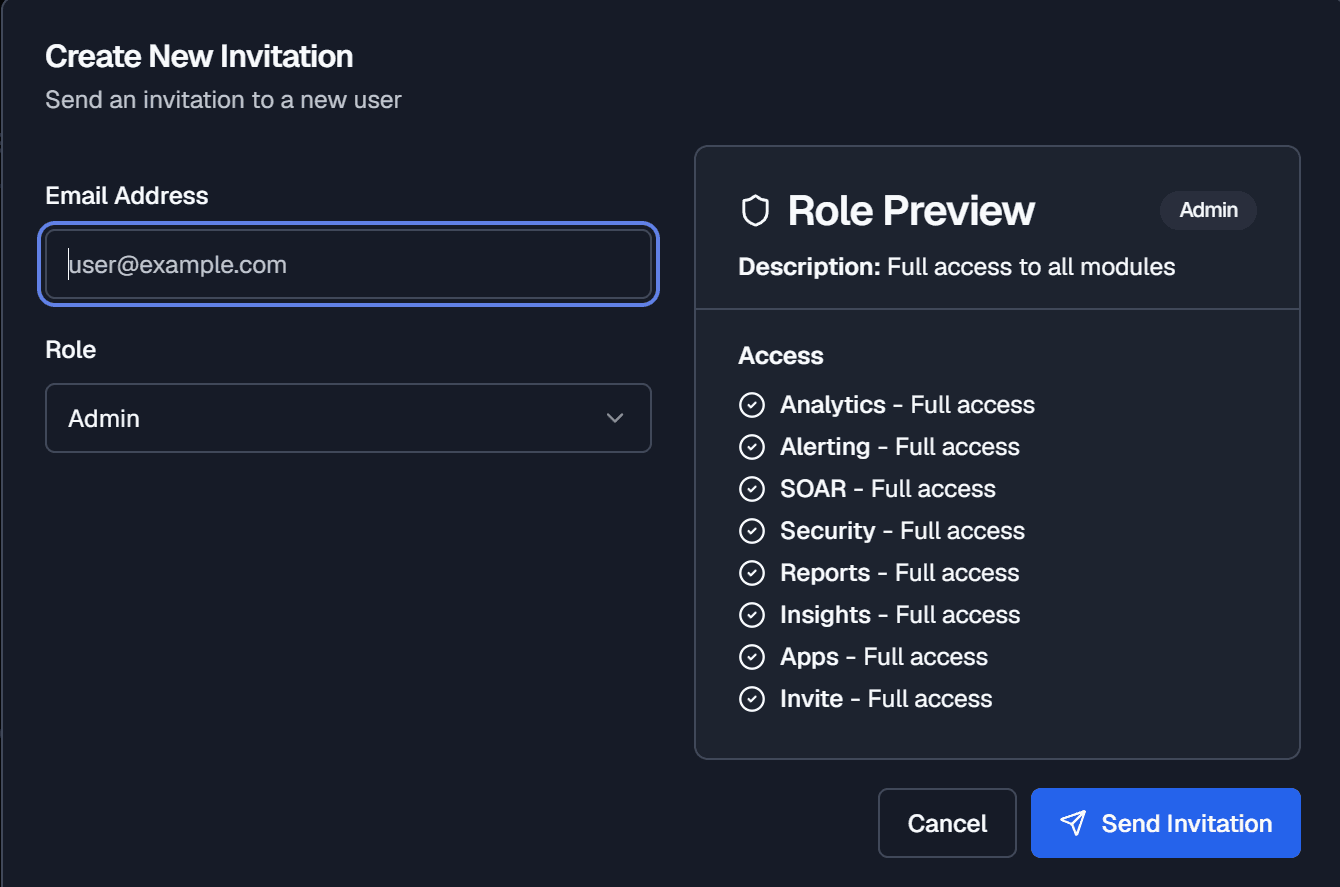
New Invitation Dialog
The new invitation dialog is used to invite a user into the stack.
The form includes:
Search Field
Filters visible users or invitations by text so you can quickly locate a user, email address, or invitation entry.
User and Invitation List
Shows visible users or pending invitations, with available row actions depending on data and permissions.
Pagination Controls
Allows users to move between result pages when the list contains more entries than can fit on one page.
How to invite a user
Role Selection
Role selection controls what the invited user can access in the platform.
Choose the lowest-privilege role that still allows the user to perform their work.
Role concepts include:
Admin
Broad platform access and administrative permissions.
Analyst
Partial access to selected SOAR areas and security workflows.
Auditor
Compliance-focused access for review and audit workflows.
Incident Responder
Focused access for alert and incident response workflows.
Senior SOC Analyst
Broad operational and security access.
Role Privileges
| Role | Analytics | SOAR (Operate) | SOAR (Config) | Security (GRC) | Reports | Insights | Invite |
|---|---|---|---|---|---|---|---|
| Admin | Full | Full | Full | Full | Full | Full | Full |
| Analyst | None | Partial | Partial | None | None | None | None |
| Auditor | None | None | None | Full | None | None | None |
| Incident Responder | None | Full | None | None | None | None | None |
| Senior SOC Analyst | Full | Full | Full | Full | Full | Full | None |
What Partial Access means
Partial Access means the user can access only specific sections, tabs, or actions within a feature area.
A user with Partial Access may be able to view or work with some pages, but they may not have full access to every related workflow.
For example, a user with Partial Access may be able to work with operational SOAR pages, but may not be able to access configuration-heavy areas such as playbooks, monitors, notification channels, or administrative settings.
Partial Access can affect:
Permission-Based Pages, Tabs, and Actions
Some Logstail pages, tabs, and actions are permission-based.
This means users may see different navigation items or available actions depending on their assigned role.
Examples of permission-based behavior may include:
If a user cannot see a page or action, their role may not include permission for that area.
Access Control Summary
Invite Users visibility
The Invite Users page is visible only to administrators and accessible from My Account → Invite Users.
Restricted access
Non-admin users cannot see the page or use the invitation workflow, preventing unauthorized user management.
Access control
Access depends on subscription state, and account configuration.
Search and actions
Search helps manage large user lists, while row actions expose management options based on permissions.
Permission limits
Missing or disabled row actions typically indicate insufficient permissions for the current role.
Troubleshooting
The Invite Users page is not visible
- 1
The current user is likely not an administrator.
- 2
The Invite Users page is admin-only and is hidden from non-admin users.
A user has Partial Access and cannot open a page
- 1
Partial Access does not grant full access to every page or action.
- 2
Review the user's assigned role and confirm whether the missing page, tab, or action is included in that role.
The invited user did not receive an email
- 1
Ask the user to check spam or quarantine.
- 2
Confirm the email address was typed correctly.
- 3
Refresh the invitation list.
The wrong role was selected
- 1
Review the row actions or account administration options.
- 2
If role editing is unavailable, an administrator may need to resend or adjust the invitation.
The invitation list does not update
- 1
Use the refresh button.
- 2
If the list still does not update, wait briefly and try again.
Best Practices
Use least privilege
Use least-privilege role assignment.
Use corporate email
Invite users with their corporate email address.
Limit admin access
Give admin access only when it is required.
Explain partial access
Explain Partial Access before assigning roles that include it.
Review invitations
Review invitations regularly.
Clean up stale invites
Remove or correct stale invitations.
Validate roles
Confirm role requirements before sending invites.
Check multi-tenant access
Validate multi-tenant visibility when users support more than one tenant.
Rely on backend enforcement
Treat frontend visibility as convenience, not the only access control layer.
Related Pages
| Page | Description |
|---|---|
| Account | Review account status, usage, retention, and subscription details. |
| Profile Preferences | Update personal profile settings, password, and user preferences. |
| Multi-Tenant Admin | Manage and switch between multiple stacks. |
| Alerts | Review alerts and validate role-based access behavior. |
| Cases | Track investigations and validate access for case workflows. |
| Monitors | Create detection rules and validate access to configuration features. |
| Playbooks | Automate response workflows and validate permission-based access. |
| Reports | Generate reports and validate access to export functionality. |