Scan Progress & History
The Scan Progress & History page is used to monitor active scans, manage scheduled scan jobs, review completed assessments, and access historical risk scores. It acts as the operational dashboard for the EASM scan lifecycle.
Where to Find It
Open the EASM navigation and go to:
Navigation path
Application route
/scans/homeprevious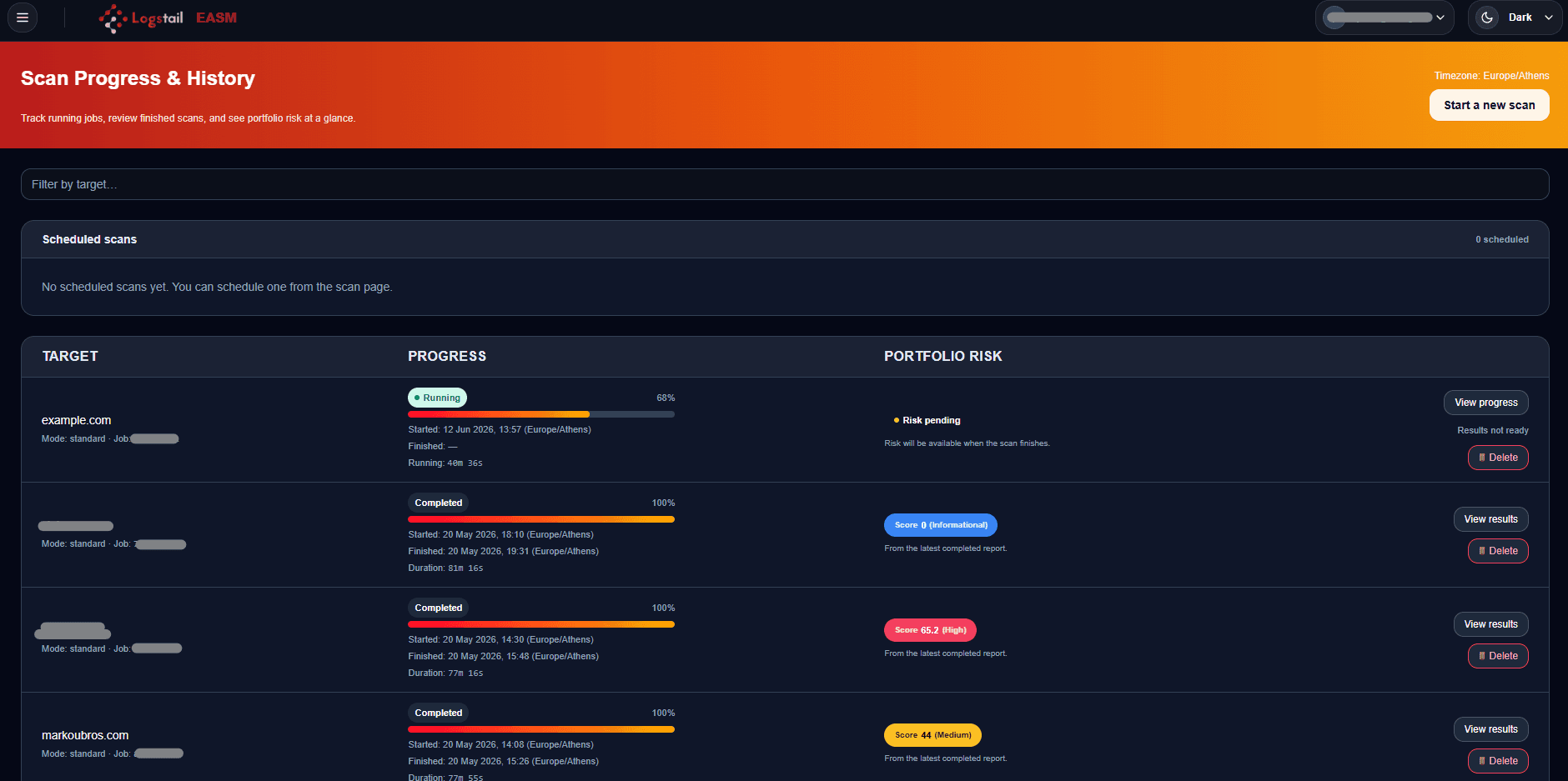
What This Page Is Used For
Use Scan Progress & History to:
View scheduled scans
View scheduled scans from the scan progress and history area.
Monitor scan progress
Monitor scan progress while scans are running.
Review scan history
Review completed scan history.
Track scan timing
Track scan start and finish times.
View risk scores
View portfolio risk scores for completed scans.
Open scan results
Open scan results for deeper review.
Delete old records
Delete old scan records when they are no longer needed.
Cancel future scans
Cancel future scheduled scans.
Launch new scans
Launch new scans quickly.
Page Layout
The page is organized around scan lifecycle visibility.
These areas include:
Header banner
View the main page banner and page-level context.
Right-side action button
Use the right-side action button to launch a related scan action quickly.
Scheduled scans
Review future scheduled scan jobs.
Active scan progress
Monitor running or active scan progress.
Completed scan history
Review completed scan records in the history table.
Risk score indicators
View risk score indicators for completed scans.
Row actions
Open results, delete records, or cancel scheduled scans from row actions.
Start a New Scan
The page includes a quick action to start a new assessment.
Use Start a New Scan when:
Scan a new target
Use this action when a user wants to scan a new target.
Re-run after remediation
Use this action when a user wants to re-run a scan after remediation.
Validate a completed fix
Use this action when a user wants to validate that a fix was completed successfully.
Launch without manual navigation
Use this action to launch a scan without navigating back to the Scan page manually.
Scheduled Scans
The scheduled scans area shows scans that are configured to run in the future.
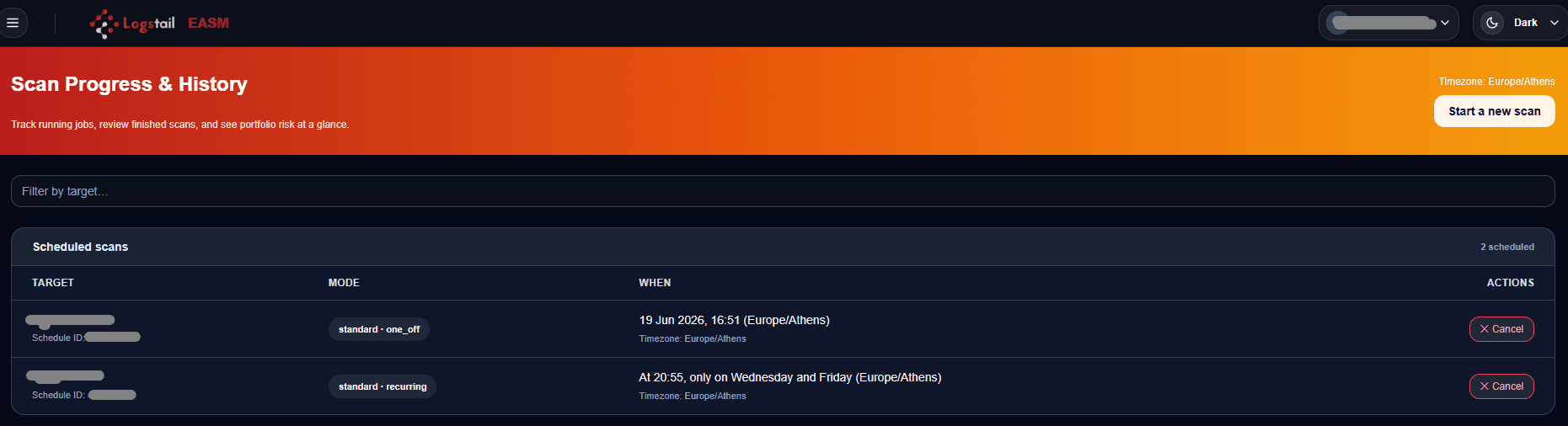
Use it to:
Confirm recurring scans
Confirm recurring scans are configured.
Review scheduled jobs
Review future scheduled scan jobs.
Validate targets and schedules
Validate scan targets and schedule configuration.
Cancel future scans
Cancel future scans that are no longer needed.
Check asset coverage
Check whether important assets are covered by recurring assessments.
Canceling a Scheduled Scan
If a scheduled scan should no longer run, use the available cancel action.
A typical workflow:
Running Scans
Running scan information helps users track active assessments.
Use this area to:
Confirm scan start
Confirm a scan started successfully.
Monitor progress
Monitor current scan progress.
Review target status
Review the target and current scan status.
Track current stage
Track which stage the scan is currently running.
Open progress view
Click View progress on a running scan to monitor live scan status and progress details.
Check completion state
Determine whether the scan is still active or has completed.

View running scan progress
For an active scan, click View progress to open the scan progress view and monitor live status, progress percentage, current scan stage, and early results while the scan is still running.
Completed Scan History
The completed scan history table lists previous assessments and helps users search historical scan records, review portfolio risk scores, open scan results, and delete old records when cleanup is needed.
Use search or filtering to locate scans by target when a large number of historical scans exist.
Review historical scans
Review previous scan records and completion details.
Search past targets
Search by target to locate a specific completed scan.
Review portfolio risk
Use portfolio risk scores to identify scans that may need follow-up.
Open scan results
Use View Details to open the completed scan result.
Compare records
Compare completed scans over time to understand exposure changes.
Delete old records
Delete old scan records only when they are no longer needed for reports, audits, or trend analysis.
Historical records
Historical scan records are useful for trend analysis, remediation validation, reporting, and compliance evidence. Before deleting a scan record, confirm that the target, scan date, reports, and evidence are no longer needed.
Common Workflows
Operational Use Cases
Security Operations
Monitor weekly or recurring EASM scans and quickly identify targets with higher scores.
Management Review
Use historical scan records to show whether exposure is improving or getting worse over time.
Compliance Audits
Use completed scans and report outputs as evidence that the external attack surface is being monitored.
Incident Review
Compare previous scan results against current findings to determine whether exposure existed before an incident.
Troubleshooting
A scheduled scan does not appear
- 1
Confirm the scan was saved successfully from the Scan page.
- 2
Confirm that the schedule configuration is complete.
- 3
Refresh the completed scans or scan history area if needed.
A running scan appears stuck
- 1
Give the scan time to complete, especially for deep scans or broad targets.
- 2
Check platform status if the scan remains stuck.
- 3
Retry with a narrower scan mode if the target is too broad.
Completed scan is missing
- 1
Check the selected date range.
- 2
Review active filters and target search terms.
- 3
Confirm the scan completed successfully.
Risk score looks unexpected
- 1
Open the scan result.
- 2
Review the underlying findings that contributed to the score.
- 3
Check for open ports, missing headers, vulnerabilities or TLS issues.
Delete action is unavailable
- 1
Confirm the current user has permission to delete scan records.
- 2
Check whether the record is protected by policy.
- 3
Contact an administrator if the delete action should be available.
Best Practices
Schedule critical scans
Use scheduled scans for critical internet-facing assets.
Review completed scans
Review completed scans regularly.
Keep historical results
Keep historical results for trend analysis and audit evidence.
Re-run after remediation
Re-run scans after remediation to confirm improvement.
Prioritize high risk
Prioritize high-risk scores first.
Preserve compliance records
Avoid deleting records that may be needed for compliance.
Use reports for handoff
Use reports for leadership review or technical remediation handoff.