
Saved Objects
The Saved Objects page is used to manage reusable analytics assets created inside the platform. Saved objects store dashboards, visualizations, saved searches, index patterns, reports, maps, UI settings, and other reusable analytics content.
Where to Find It
Open the main navigation menu and go to: Analytics → Saved Objects to load your Dashboard objects.
Sidebar path
Route path
/saved-objectsWhat this page is used for
Use Saved Objects to:
Back up content
Export dashboards and visualizations.
Import content
Move analytics assets between environments.
Remove outdated assets
Clean up old dashboards and searches.
Manage saved searches
Organize searches and index patterns.
Migrate dashboards
Move dashboards between stacks.
Maintain shared content
Keep analytics assets consistent.
Main View
Saved Objects opens as a full-page embedded saved object management page. The embedded interface allows users to manage analytics content and reusable objects.
Because this route is embedded, available actions may vary by analytics configuration.
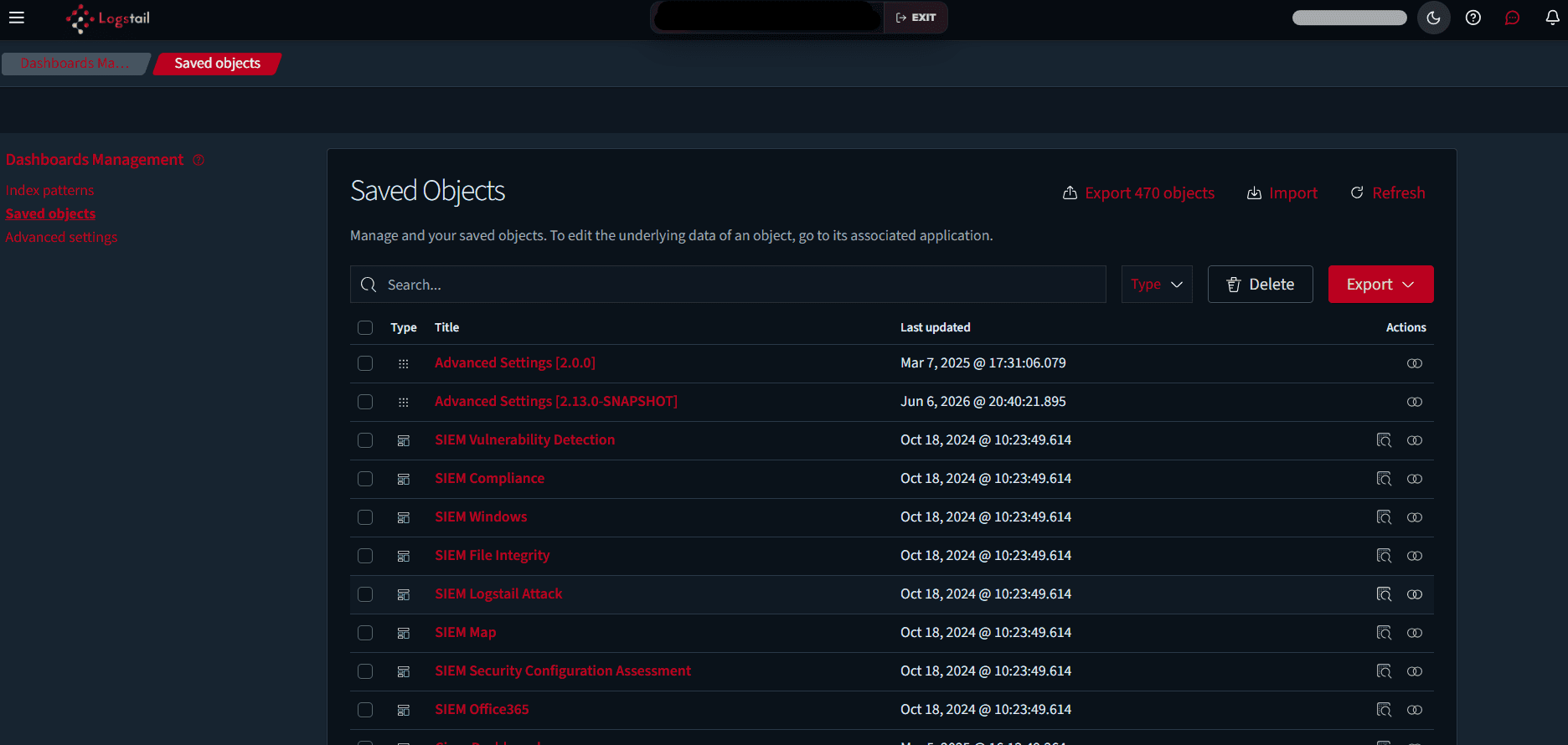
Object Types
Saved objects may include:
Page Controls
Search
Use the search bar to locate saved objects by title. This is useful in environments with many dashboards, searches, and visualizations.
Type Filter
Use the type dropdown to filter saved objects by category.
Examples include:
Delete
Delete removes selected saved objects from the platform. Use this carefully, especially for shared dashboards or production analytics content.
Export
Export selected saved objects for:
Export All Objects
If available, export all objects in bulk to back up the full analytics configuration.
Import
Import uploads previously exported saved objects into the platform. This is useful when restoring content or migrating dashboards into a new stack.
Refresh
Refresh reloads the saved object list and updates displayed content.
Saved Objects Table
The table lists stored objects and their key metadata.
Common columns include:
Actions may include:
Operational Value
Saved Objects helps administrators:
Safe Change Workflow
Troubleshooting
Imported dashboards do not work
- 1
Check whether required index patterns, visualizations, or saved searches were included in the export.
A dashboard disappeared
- 1
Review recent saved object deletions or imports.
- 2
Restore from a previous export if available.
Object names are confusing
- 1
Use consistent naming for dashboards, searches, and visualizations to prevent operational mistakes.
Deleting an object breaks another page
- 1
Some saved objects are dependencies for dashboards or visualizations.
- 2
Check relationships before deletion when supported.
Best Practices
Export backups
Export backups before major dashboard changes.
Use consistent naming
Use consistent names and descriptions.
Avoid unsafe deletions
Avoid deleting objects unless ownership and impact are clear.
Review unused content
Review unused objects periodically.
Separate environments
Keep production dashboards separate from test dashboards.
Version control exports
Version-control important exported content where possible.