
Reports
The Reports page is the EASM reporting center. It allows users to review completed scans, search historical targets, inspect portfolio risk scores, and download executive or technical PDF reports based on scan results.
Where to Find It
Open the EASM navigation and go to:
Navigation path
Application route
/reports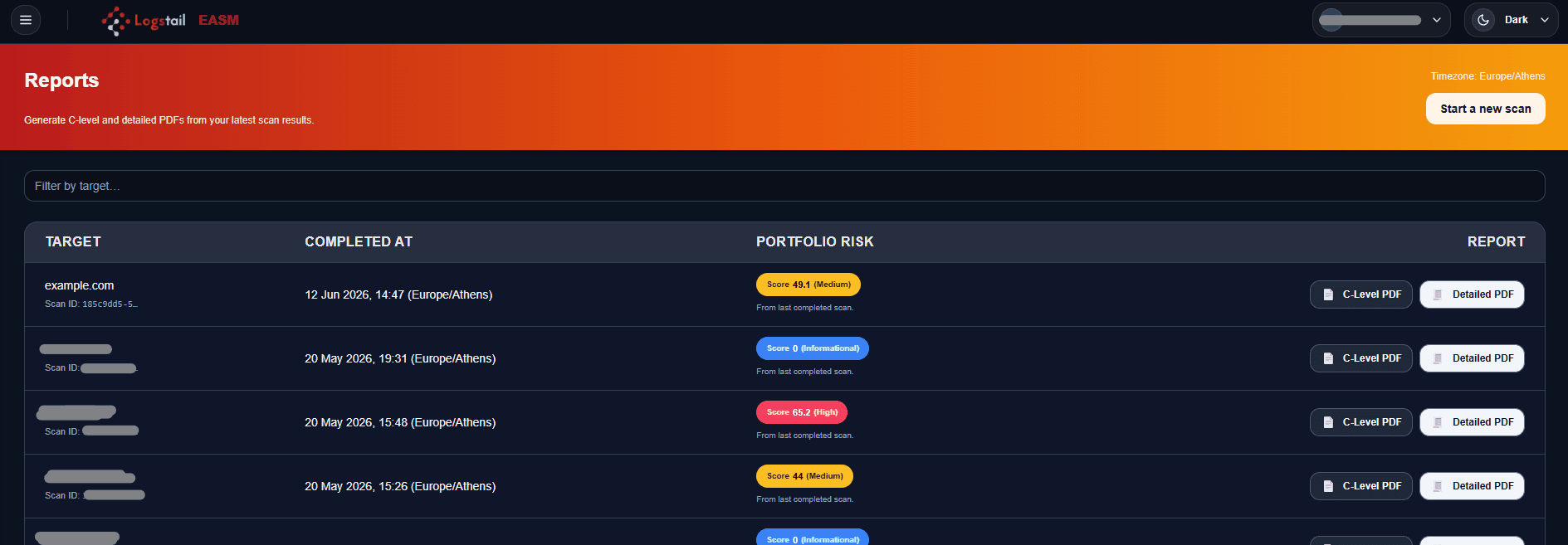
What This Page Is Used For
Completed scans only
Reports are available only for completed scans. Running, scheduled, or failed scans may not have downloadable report files until a scan finishes successfully.
Use the Reports page to:
Completed scan records
View completed scan records.
Previous scan targets
Search previous scan targets.
Executive reports
Download executive C-Level PDF reports.
Technical reports
Download detailed technical PDF reports.
Share findings
Share scan findings with leadership or technical teams.
Audit evidence
Support compliance and audit evidence.
Launch new scan
Launch a new scan directly from the page.
Start a New Scan
The right-side action button allows users to start a new assessment.
Use Start a New Scan when:
This action sends the user back to the Scan page.
Search and Filter
Use the Filter by Target field to quickly locate completed scan reports by domain name, IP address, URL, or asset name.
For example, users can search for targets such as example.com, 1.1.1.1, or https://app.example.com .
This is useful when many scan results exist and a user needs to locate a specific target quickly.
Reports Table
The main section of the Reports page is a structured table containing historical completed scan entries.
Each row represents one completed scan and includes the scanned target, completion time, calculated portfolio risk, and available report download actions.
Reports table columns
Use this table to understand what each column in the Reports page represents.
| Column | Description | Examples |
|---|---|---|
| Target | Shows the scanned domain, URL, IP address, or asset name. | example.com 1.1.1.1 https://app.example.com |
| Completed At | Shows when the scan finished. Use this timestamp to identify the newest scan, compare historical assessments, or confirm whether a scan happened before or after remediation. | 24 Mar 2026, 15:01 (Europe/Athens) |
| Portfolio Risk | Shows the calculated security posture score for the completed scan. Higher scores indicate greater external exposure and should be prioritized for review. | Score 49.1 (Medium) Score 68.5 (High) Score 39.2 (Medium) |
| Report | Shows the available report download actions for the completed scan. | C-Level PDF Detailed PDF |
Risk Badge Levels
Informational
Low impact or no significant security issues detected.
Low
Low-impact findings or hygiene issues that should be reviewed when time allows.
Medium
Moderate findings that should be reviewed and remediated in a reasonable timeframe.
High
Serious findings that increase external exposure and should be prioritized.
Critical
Severe findings that may require immediate attention.
Purpose of Risk Score
The portfolio risk score gives users a quick summary of external security posture.
The score is influenced by:
Use the score as a prioritization signal, then review detailed findings before assigning remediation work.
Report Types
C-Level PDF
Executive summary report for leadership, governance, and non-technical security review.
Detailed PDF
Technical report for analysts, engineers, administrators, and remediation owners.
C-Level PDF
The C-Level PDF is an executive summary report intended for leadership, management, governance, and security review meetings.
It summarizes the external security posture of the scanned target in a concise, business-friendly format. The report focuses on risk level, exposure summary, key findings, and supporting context without requiring users to review every raw scan detail.
C-Level PDF contents
The C-Level report focuses on executive summary, risk posture, and high-level findings.
| Report area | Description |
|---|---|
| Report metadata | Target, generated date, report ID, and other report identification details. |
| Executive summary | Business-friendly overview of the scanned target’s external security posture. |
| Portfolio risk | Portfolio risk score, risk level, and security issue distribution by severity. |
| Exposure summary | Summary of discovered assets, open ports, reachable services, TLS/SSL posture, and issue source breakdown. |
| Key facts | High-level facts about hosting, ASN, IP addresses, services, email authentication, WAF detection, DNS records, and WHOIS context. |
| Key findings | Important findings with severity and supporting context for leadership review. |
| Technical notes | Short technical appendix for supporting context without going into full remediation-level evidence. |
Best for:
Report focus
The C-Level PDF is designed for summary review. Use the Detailed PDF or All Findings page when analysts need deeper technical evidence, raw findings, or remediation-level detail.
Detailed PDF
The Detailed PDF is a technical report intended for security analysts, engineers, administrators, and remediation owners.
It provides a deeper view of the completed EASM scan, including risk scoring, validated findings, affected assets, DNS and WHOIS context, open ports, TLS review output, email security status, and scanner notes. Use this report when teams need technical evidence for investigation, remediation, validation, or handoff.
Detailed PDF contents
The Detailed report focuses on technical evidence, affected assets, and remediation context.
| Report area | Description |
|---|---|
| Report metadata | Target, generated date, report ID, and other report identification details. |
| Risk summary | Executive summary, portfolio risk score, risk level, security issue distribution, and issue source breakdown. |
| Asset and exposure data | Assets discovered, discovered subdomains, open services observed, and open ports by host. |
| Detailed findings | Risk findings with severity, affected asset, score, CVE field, and technical context. |
| DNS and WHOIS | DNS records, WHOIS details, infrastructure context, and ownership-related evidence. |
| Security checks | Email security status, TLS findings, XSS review output, and related scanner observations. |
| Technical notes | Technical appendix and scanner notes for analyst or engineering review. |
Best for:
Report focus
The Detailed PDF is built for technical review and remediation handoff. Use it when teams need affected assets, finding severity, open ports, DNS and WHOIS context, TLS review details, and scan evidence.
Typical Workflows
Common Use Cases
Security Operations
Download the latest technical findings after weekly external scans.
Management Review
Use the C-Level PDF for monthly security posture and risk reporting.
Compliance Audits
Provide historical reports as evidence that external exposure is being monitored.
Incident Review
Compare previous risk scores against current posture to determine whether exposure existed before an incident or improved after remediation.
Report Selection Guidance
Use C-Level PDF when the audience needs:
Use Detailed PDF when the audience needs:
Troubleshooting
No reports appear
- 1
Confirm that at least one scan has completed.
- 2
Reports are based on completed scan results.
Target is missing
- 1
Use the filter field and confirm the target format.
- 2
Check Scan Progress & History to verify the scan completed.
PDF download does not start
- 1
Retry the download.
- 2
Confirm that the scan record still exists.
- 3
Confirm that the browser allows downloads.
Risk score looks too high
- 1
Open the detailed report and review the findings driving the score.
- 2
Check for exposed services, TLS issues, missing headers, or critical vulnerabilities.
Report is outdated
- 1
Run a new scan against the target.
- 2
Download a fresh report after the new scan completes.
Report buttons are unavailable
- 1
Confirm the scan completed successfully.
- 2
Refresh the Reports page.
- 3
Check whether the selected user has permission to download reports.
- 4
Run a new scan if the report record is incomplete or outdated.
Best Practices
Use latest scan
Always use the most recent completed scan for reporting.
Use C-Level reports
Use C-Level reports when technical detail is unnecessary.
Use Detailed PDFs
Use Detailed PDFs for remediation and engineering handoff.
Re-run after fixes
Re-run scans after fixes to confirm improvement.
Track risk trends
Track risk score trends over time.
Keep audit evidence
Keep reports for audit and governance evidence.
Limit external sharing
Avoid sharing technical PDFs externally unless required.