Profile & Preferences
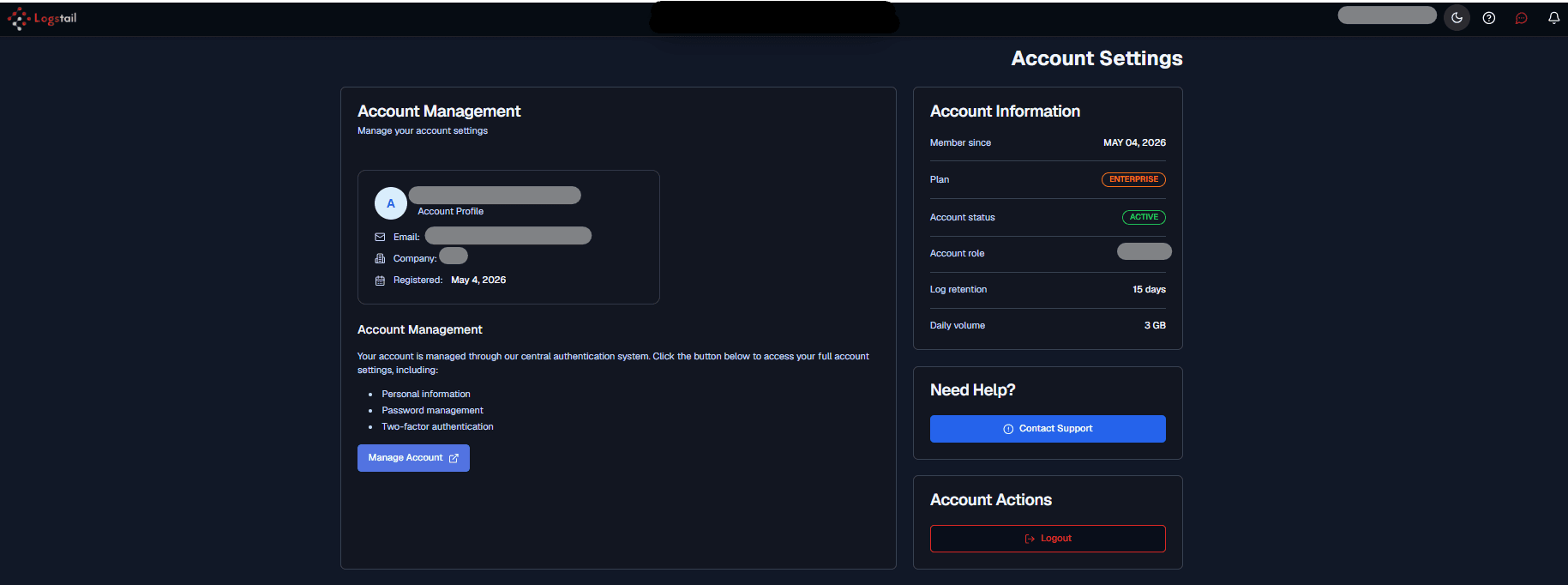
The Profile & Preferences page provides access to account information, role and plan details, security settings, support options, and session controls such as sign-out.
Where to Find It
Open the main navigation menu and go to:
Navigation path
Application route
/my-account/profileUsers can also reach this workflow from the top-right user menu by selecting Profile.
What This Page Is Used For
Use Profile & Preferences to:
View profile
See the signed-in user profile.
Review account info
Check plan, role, retention, and usage.
Manage security
Access password and security settings.
Contact support
Reach out for help when needed.
Log out
End the current session.
Confirm account context
Verify which user and account are active.
Main Sections
The Profile & Preferences page contains these sections:
Account Management
The Account Management section appears on the left side of the page.
It includes a user profile card and the Manage Account button.
The profile card shows:
Use this section to confirm that you are signed in with the correct user and company account.
Manage Account
Click Manage Account to open the central account management area.
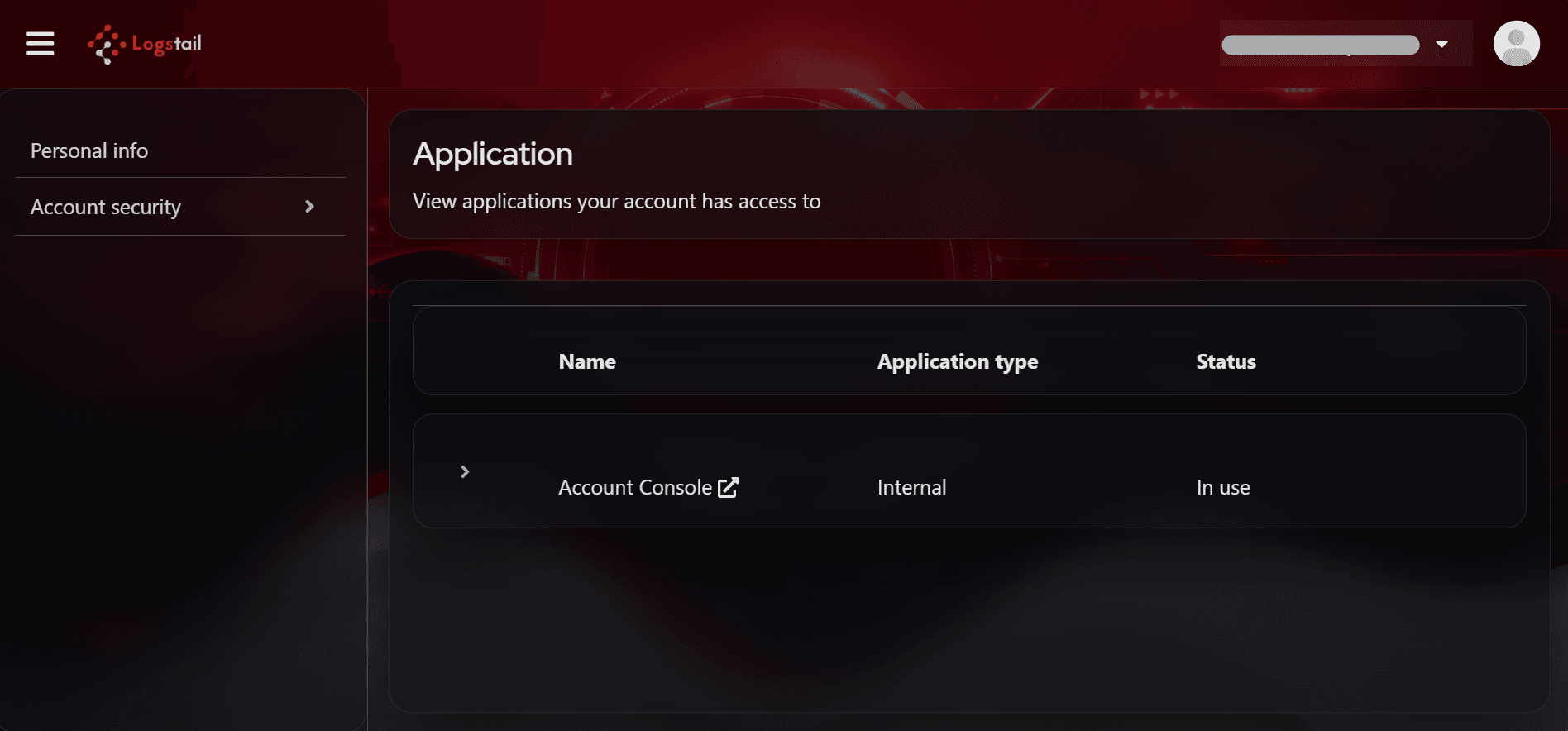
This is a separate account-management view that opens after selecting the Manage Account button from Profile & Preferences.
Use Manage Account when you need to review or update identity, sign-in, and security-related settings.
The account management area includes:
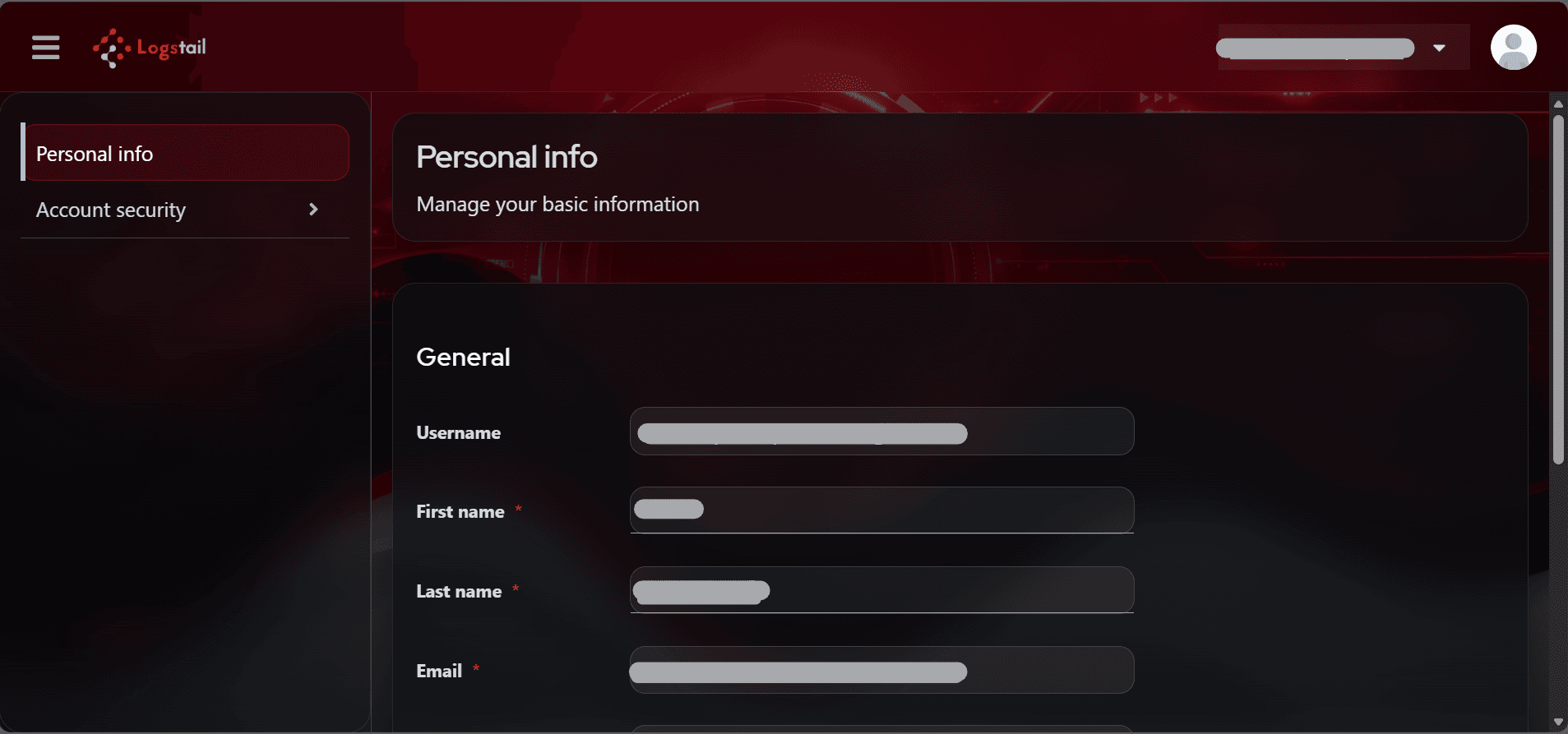
Personal Info
Use Personal info to review or manage personal account details.
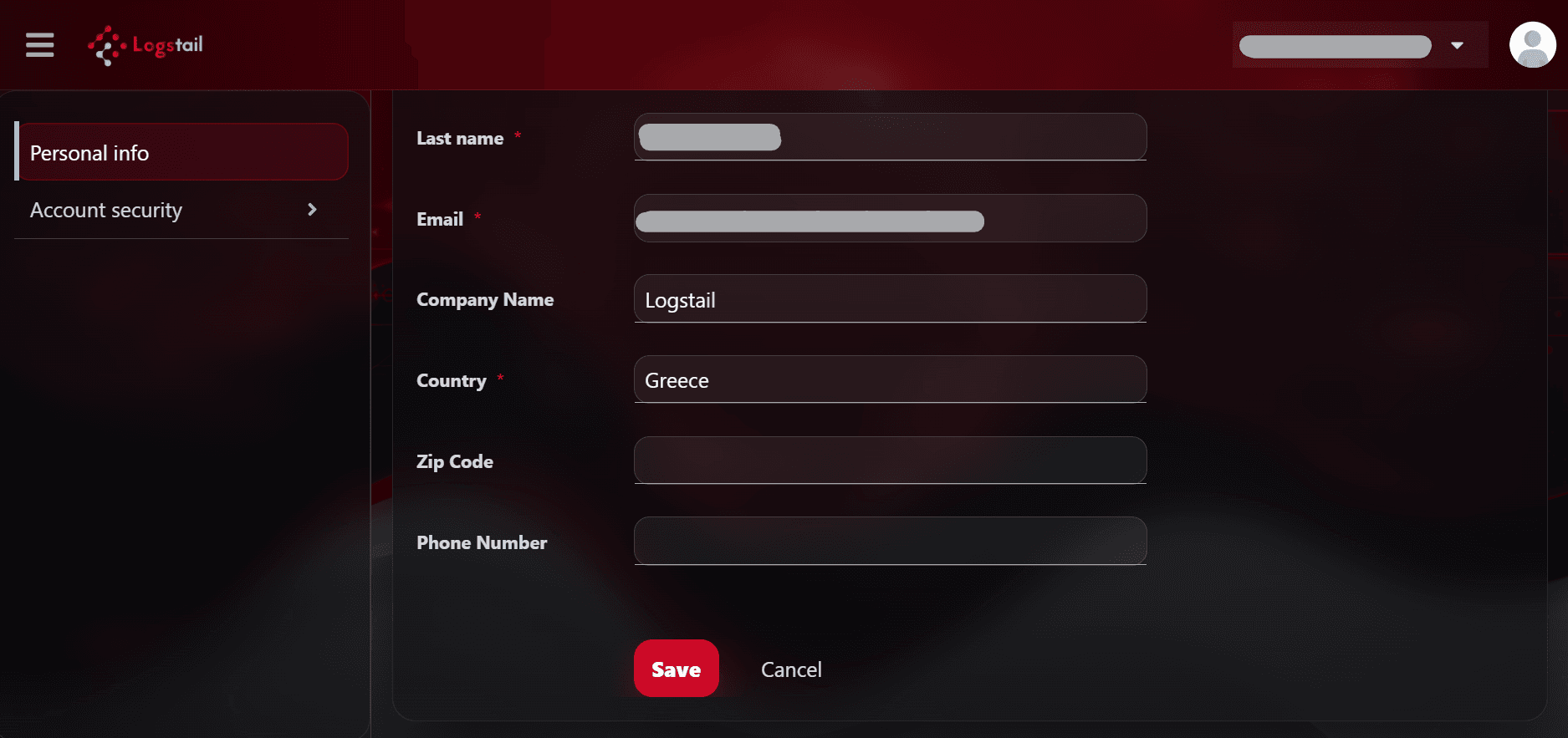
Account Security
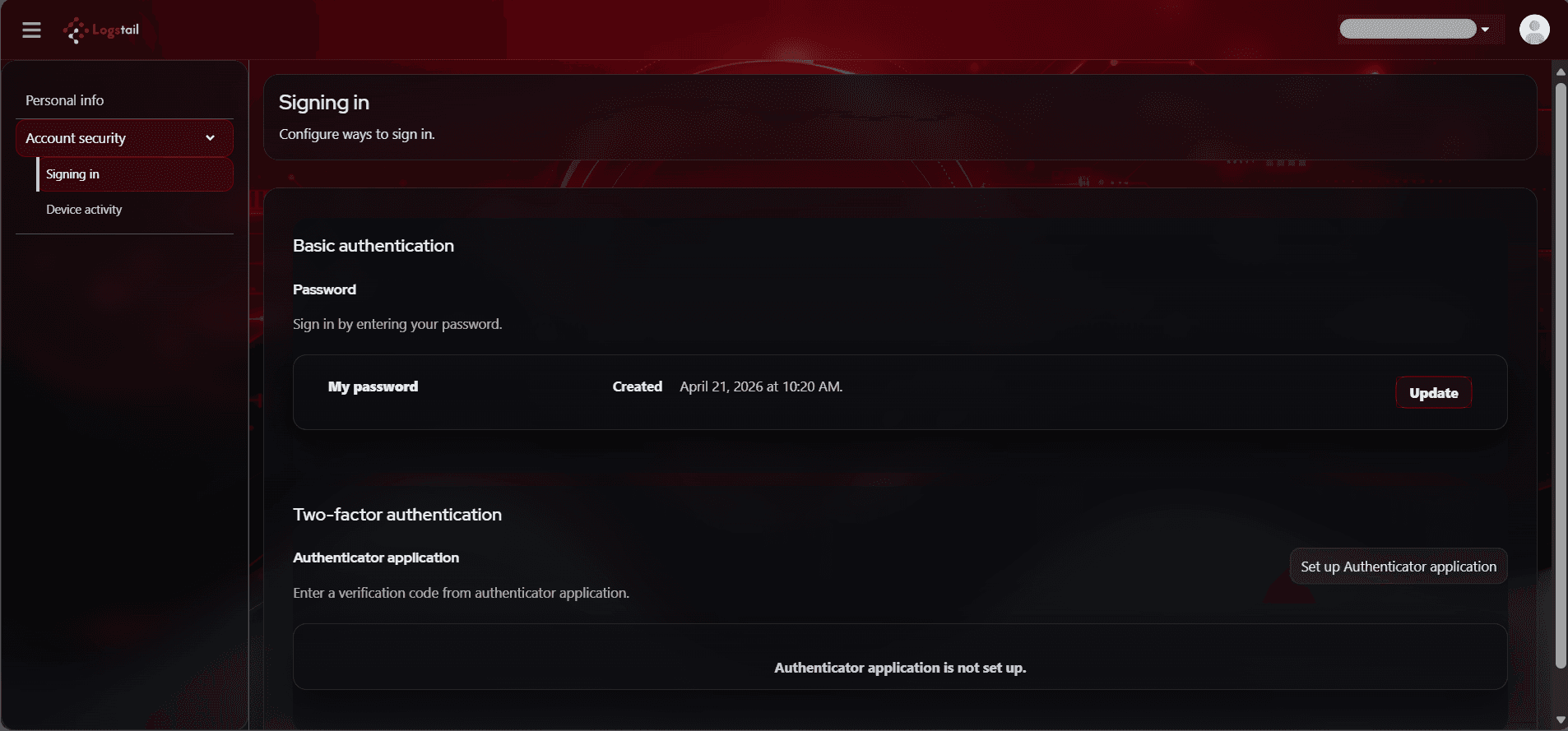
Use Account security to open security-related account settings such as:
Signing In
Use Signing in to manage sign-in related settings, such as password and authentication options.
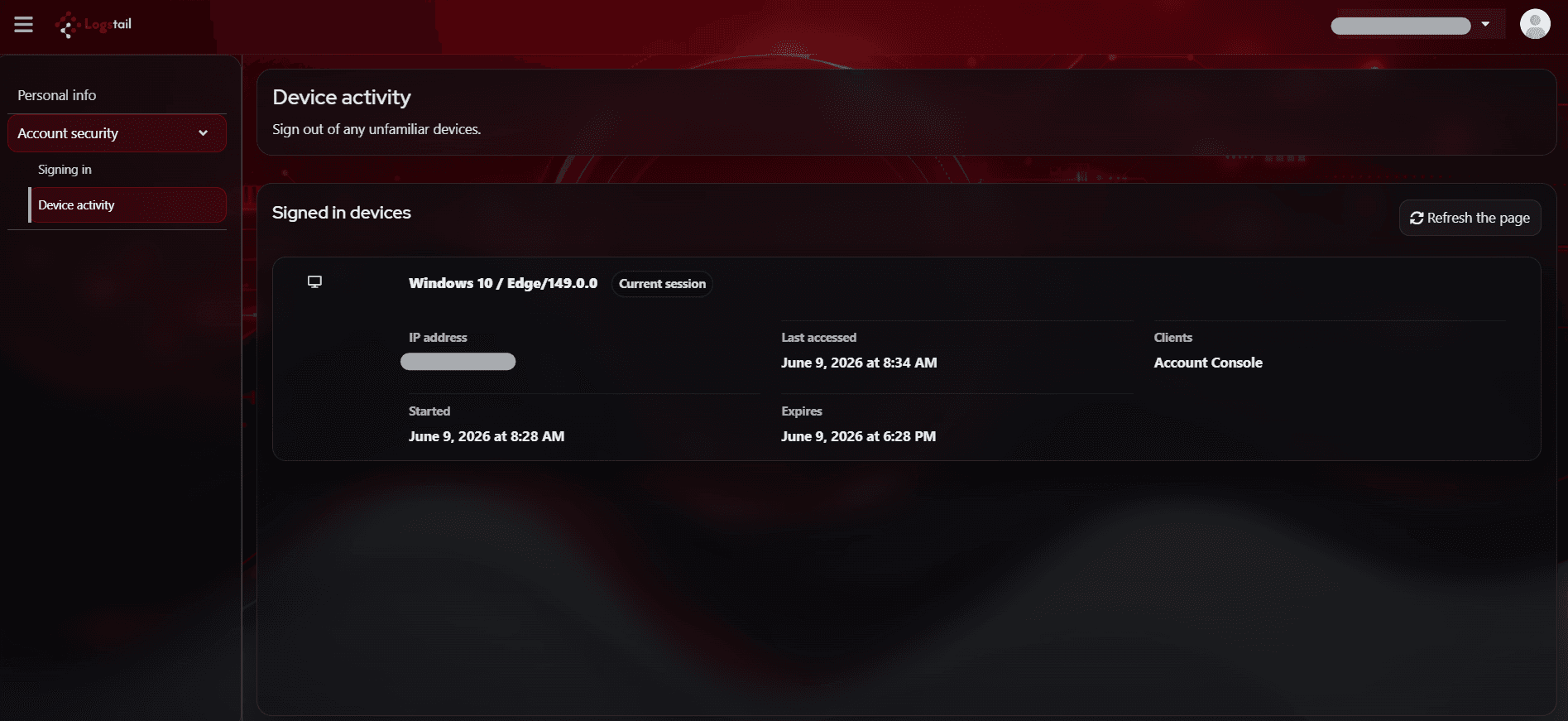
Device Activity
Use Device activity to review account activity related to signed-in devices or sessions.
Account Information
The Account Information section appears on the right side of the Profile & Preferences page.
It displays account-level details such as:
Account Information Fields
The Account section displays key details about the current user, subscription status, and data configuration.
| Field | Description |
|---|---|
| Member since | Shows when the account was created or registered. |
| Plan | Shows the active plan, such as Enterprise. |
| Account status | Shows whether the account is active. |
| Account role | Shows the current user role, such as Senior SOC Analyst. |
| Log retention | Shows how long logs are retained. |
| Daily volume | Shows the daily data volume assigned to the account. |
Use this section to verify plan, access level, and account limits.
Need Help?
The Need Help? section provides access to support.
Click Contact Support when you need help with:
Account Actions
The Account Actions section contains session-related account actions.
The visible action is Logout.
Use Logout to end the current authenticated session.
Log out when:
Session and Profile Controls
The top-right user menu provides a shortcut to common profile and session actions.
This menu includes:
This menu is an alternate path to profile and session controls. It does not replace the full Profile & Preferences page.
Security Notes
Access impact
Profile and account actions can affect access, session security, and account ownership.
Manage account
Use Manage Account for identity and security-related settings such as sign-in options and device activity.
Logout usage
Use Logout when working from shared, temporary, or public devices.
Authorized actions
High-impact account operations should only be performed by authorized users.
Troubleshooting
The account information looks incorrect
- 1
Confirm that the user is logged in with the correct account.
- 2
If the email, company, role, plan, retention, or daily volume details look wrong, contact an administrator or support.
Manage Account does not open
- 1
Confirm that the page is fully loaded and try again.
- 2
If the issue continues, refresh the page or contact support.
Account security options are not visible
- 1
Click Manage Account, then open Account security.
- 2
If the expected options are still missing, they may depend on the authentication provider, role, or account configuration.
Contact Support does not open
- 1
Confirm that the page is fully loaded and try again.
- 2
If the issue continues, refresh the page or contact your administrator.
Logout does not work
- 1
Refresh the page and try again.
- 2
If the session remains active, close the browser session and contact support if the issue continues.
Best Practices
Verify profile details
Confirm profile details after onboarding.
Check active session
Use the header account area to quickly verify the active session.
Review profile information
Use Profile & Preferences to review detailed account information.
Manage security settings
Use Manage Account for sign-in, security, and device activity settings.
Use support when needed
Use Contact Support for account or access issues.
Log out on shared devices
Log out when using a shared workstation.