User Account Menu
The User Account Menu provides quick access to profile settings, appearance preferences, and session controls from the EASM interface.
This menu is located in the top-right area of the platform header. Users can open it to manage account-related options, switch the interface theme, or securely log out of the current session.

Top Header Controls
The top-right header area includes compact controls for account access and appearance settings.
User Account Selector
The User Account Selector is located in the header controls and displays the active user identity.
It usually includes:
Clicking this area opens the account dropdown menu.
Theme Selector
The Theme Selector allows users to change the visual appearance of the platform.
In the screenshot, Dark Mode is active. The menu displays a moon icon, the current theme label, and a dropdown arrow.
Available theme options include:
A small green indicator appears next to the active theme. In the screenshot, the green dot confirms that Dark Mode is currently selected.
Dropdown Menu Panel
When the user clicks the account selector, a dropdown panel appears below the header.
This panel contains account navigation and session actions.
Profile Option
The Profile option opens the user profile section.
Use this option to access account-related information and available profile controls.
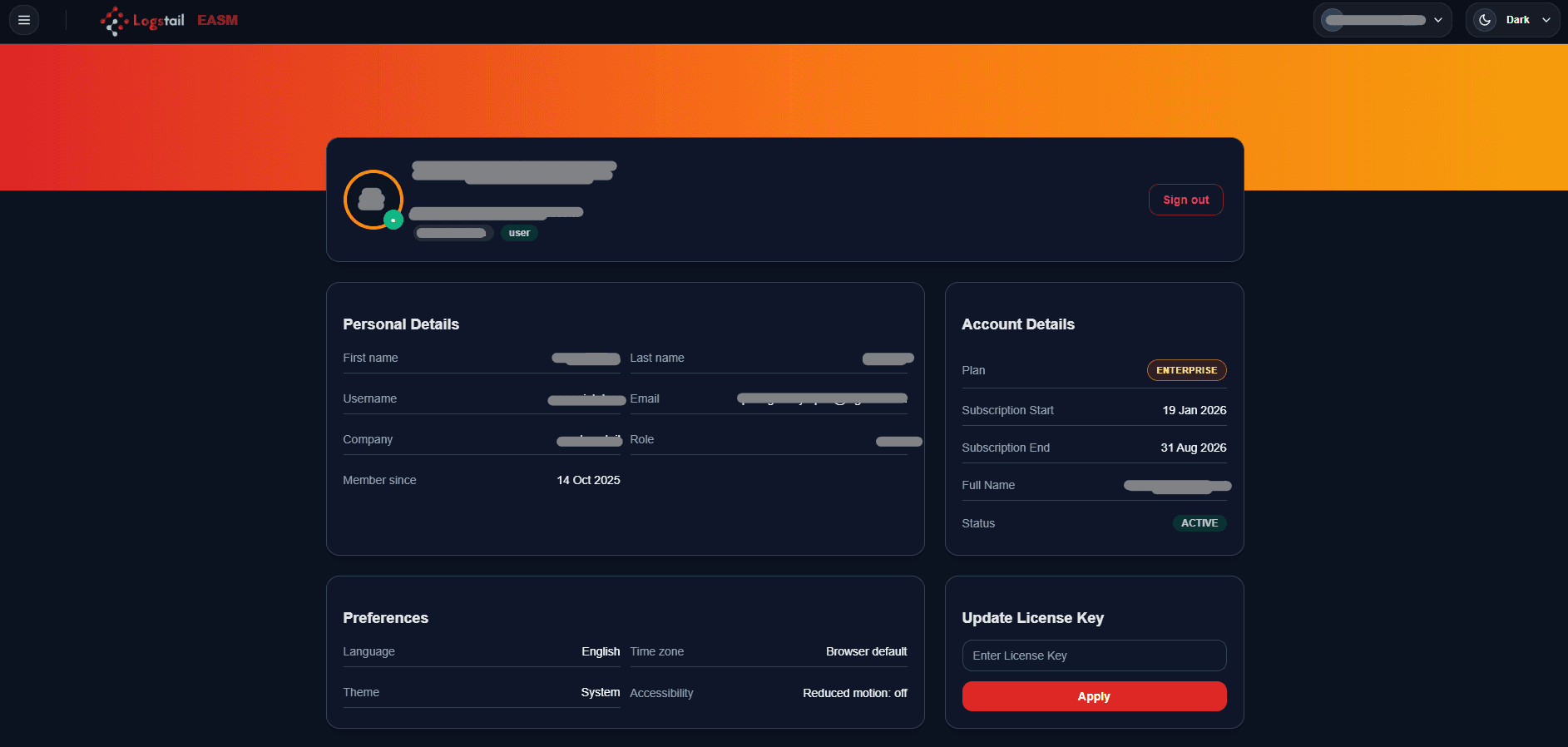
Profile functions include:
Log Out Option
The Log Out option securely ends the current authenticated session.
Users should log out when:
Logging out helps protect account access and reduces the risk of unauthorized session use.
Controls Summary
Settings controls
Overview of the available account, appearance, and session controls.
| Category | Controls |
|---|---|
| Account Controls | User selector, profile access |
| Appearance Controls | Theme selection |
| Session Controls | Log out |
Security Best Practices
Log out on shared devices
Always log out after using EASM on shared, temporary, or public devices.
Protect security data
This is especially important when accessing security data from remote environments, shared workstations, or devices that other users may access later.