Agents
The Agents page is the main workspace for monitoring endpoint agents in Logstail SIEM SOAR.
Use this page to check endpoint health, review registered agents, inspect endpoint details, group agents, review vulnerabilities and issues, run supported actions, and export endpoint-related reports.
Where to Find It
Open the main navigation menu and go to: Security → Agents to manage endpoint agents and review agent status, health, and coverage.
Sidebar path
Route path
/securityWhat This Page Is Used For
Monitor agents
Track Windows and Unix/Linux agent status.
Check agent health
Identify online, unhealthy, inactive, or stale agents.
Search & filter endpoints
Filter by status, OS, group, or health.
Open endpoint details
View hardware, software, services, processes, and vulnerabilities.
Review fleet-wide data
See actions, issues, vulnerabilities, updates, and software.
Install new agents
Deploy agents to new endpoints.
Group agents
Organize endpoints for easier management.
Export reports
Generate endpoint reports for analysis.
Run remote actions
Execute supported actions where permitted.
Who uses this page
The agents page is designed for agent management, and remote functionality. Ideal for:
SOC Engineers
Validate telemetry collection, collector status, and endpoint coverage.
Incident Responders
Open agent details, review processes, services, network data, and run approved remote actions.
IT Operations
Check agent versions, update status, software inventory, and patch visibility.
Vulnerability Management
Review endpoint vulnerability exposure and remediation progress.
Compliance and Audit
Export endpoint reports for evidence and operational review.
Access Notes
This page is used by platform roles that are allowed to manage or review endpoint visibility, agent health, vulnerabilities, and response actions. Platform roles include Admin, Senior SOC Analyst and Auditor.
How to Use This Page
A typical workflow starts from the Dashboard tab.
For fleet-wide review, use Total Issues, Total Vulnerabilities, Total Actions, Total Updates, and Total Software.
Main Tabs
The Agents page includes these main tabs:
Use the same tab names shown in the platform when following workflows.
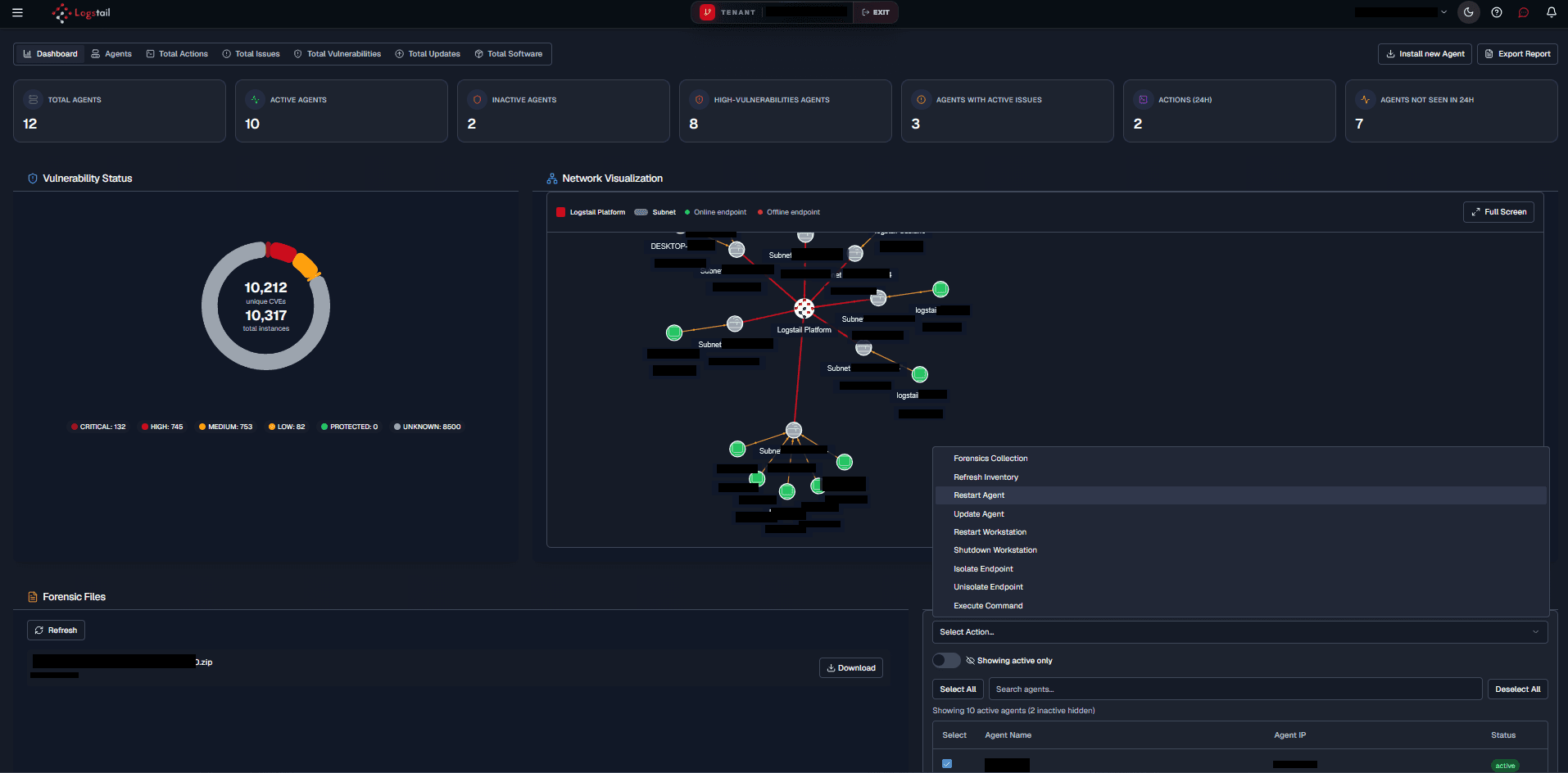
Dashboard
Use the Dashboard tab to review endpoint coverage, agent health, vulnerability posture, activity levels, and recent agent activity.
Dashboard cards include:
Use this tab first during daily SOC checks or endpoint health reviews.
Agents
Use the Agents tab to review registered endpoints and open agent details.
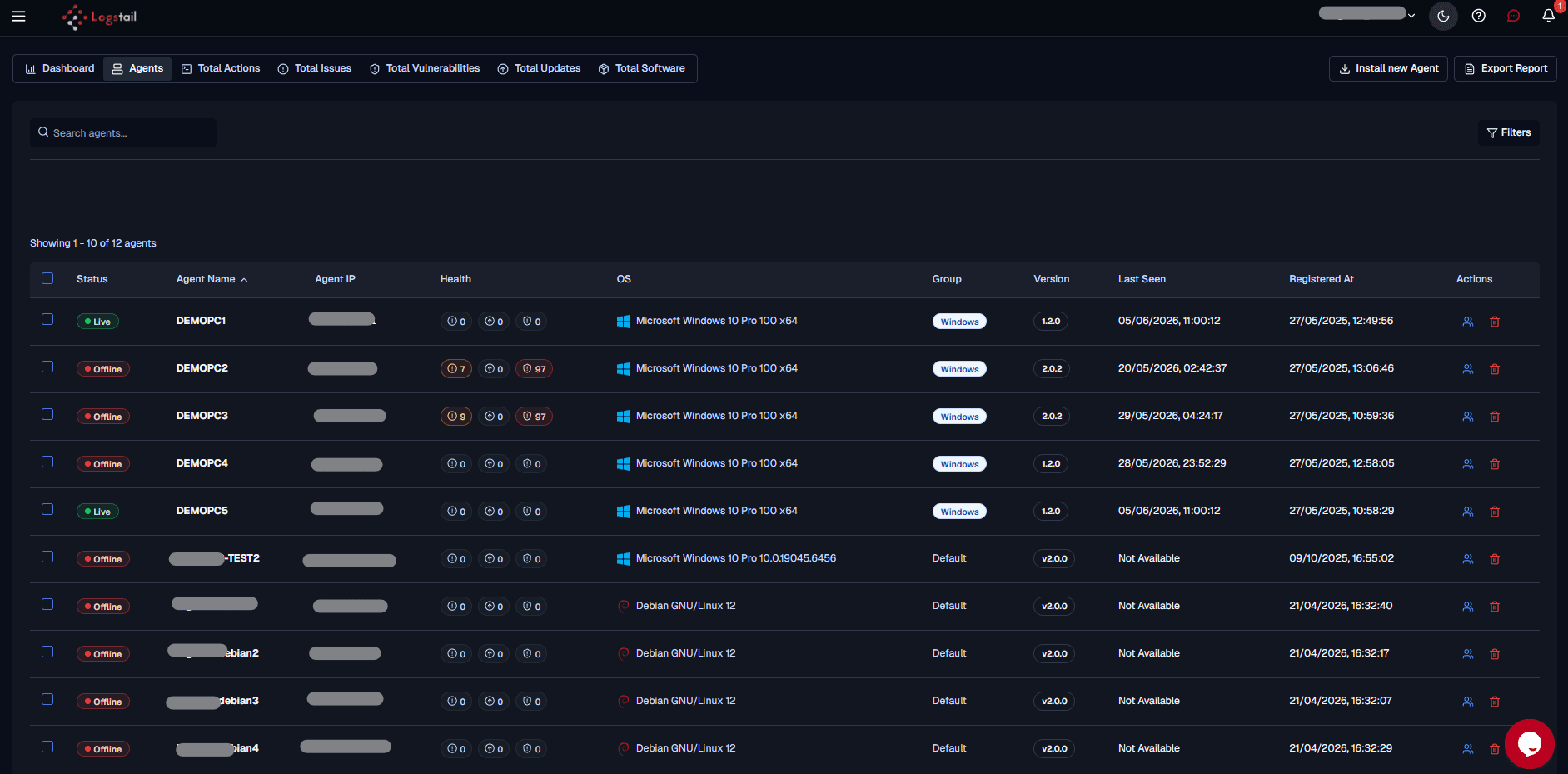
Table Columns
The Agents tab uses a table to show registered endpoints, health, inventory context, and available actions.
| Column | Description |
|---|---|
| Selection Checkbox | Selects one or more agents for bulk actions, such as grouping. |
| Status | Shows the current agent state, such as live, offline, inactive, unhealthy, or stale. |
| Agent Name | The endpoint or agent name shown in the platform. |
| Agent IP | The IP address reported by the agent. |
| Health | Shows endpoint health indicators, issue counts, or vulnerability-related status where available. |
| OS | The operating system detected for the endpoint. |
| Group | The group assigned to the agent. |
| Version | The installed Logstail Agent version. |
| Last Seen | The last time the agent checked in or sent activity to the platform. |
| Registered At | The timestamp showing when the agent was registered. |
| Actions | Opens available row actions for the agent, such as group management, deletion, or supported endpoint actions. |
Use this tab to search endpoints, filter the list, install new agents, group agents, or open endpoint-specific details.
Search and Filter Agents
Use search and filters when the agent list is large.
Common filters include:
Use filters to focus on endpoints that need action, such as offline agents, unhealthy agents, vulnerable hosts, or endpoints in a specific group.
Install a New Agent
Navigate to the top right Install new Agent button to create a new Agent on your stack.

Related installation guide
For full installation commands, operating system requirements, and setup details, see the Logstail Agent installation guide.
Group Agents
After grouping agents, use the group filter for reviews, reports, or investigations.
Common group examples:
Agent Details
Open an agent from the Agents tab to inspect one endpoint in detail.
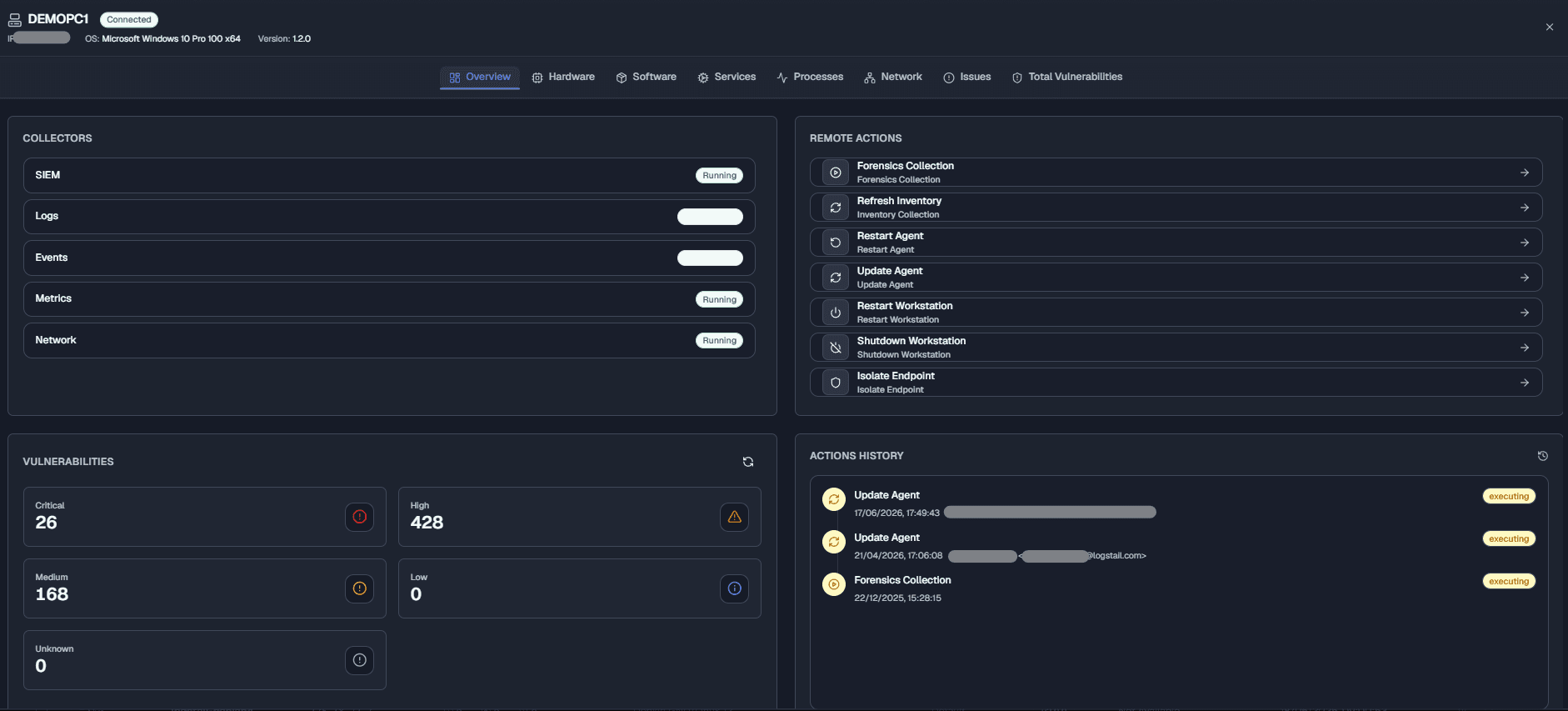
The agent detail view includes endpoint-specific tabs and action panels. Use this view when investigating a host, checking collector status, reviewing inventory, or running supported response actions.
Agent Detail Tabs
When opening a specific agent, the detail view include these tabs:
Overview
Use the Overview tab to confirm the endpoint’s current state and available actions, including collectors and remote actions. Use this first to verify telemetry and perform authorized actions.
Hardware
Review hardware and host characteristics for asset validation, troubleshooting, and confirming system identity.
Software
Review installed software to support inventory tracking, suspicious application analysis, and vulnerability context.
Services
Review services running on the endpoint to identify unexpected services, persistence indicators, or remediation needs.
Processes
Review running processes to investigate suspicious execution, unexpected binaries, and process activity.
Network
Review interfaces, connections, adapter details, and communication patterns for network visibility.
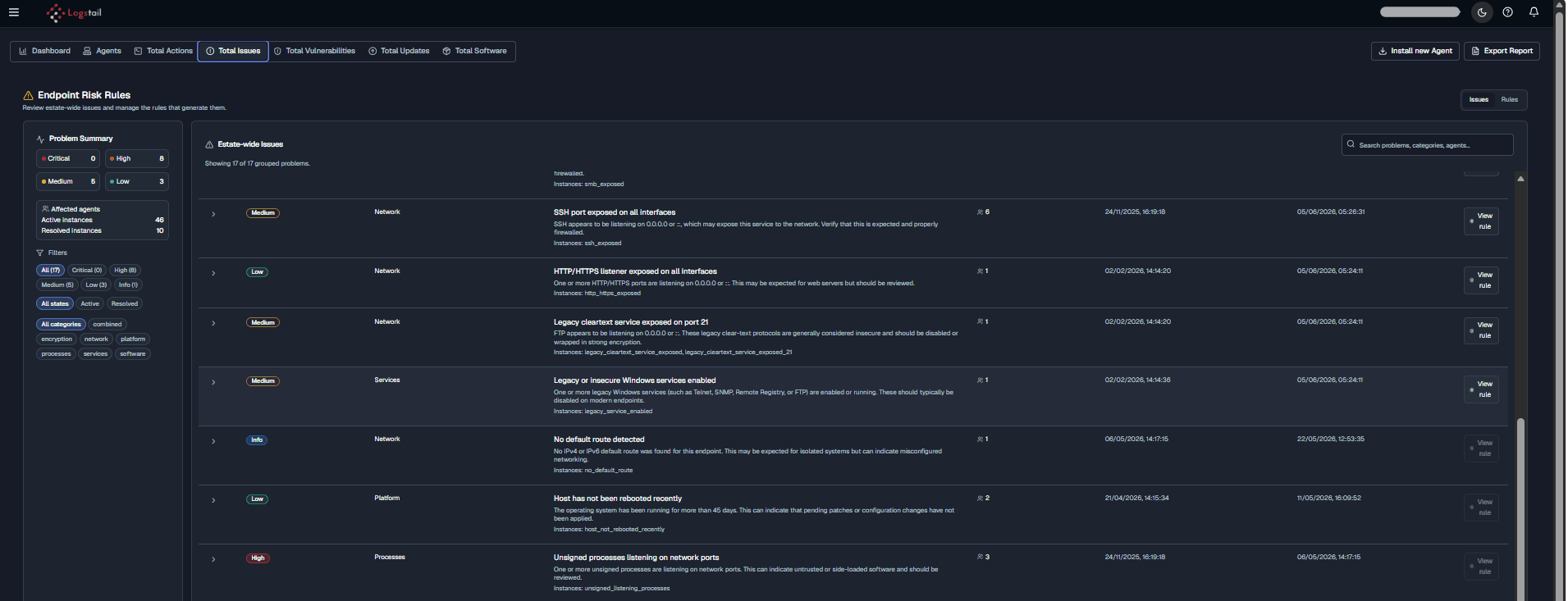
Issues
Review detected endpoint issues, including operational problems, misconfigurations, security findings, and agent health concerns.
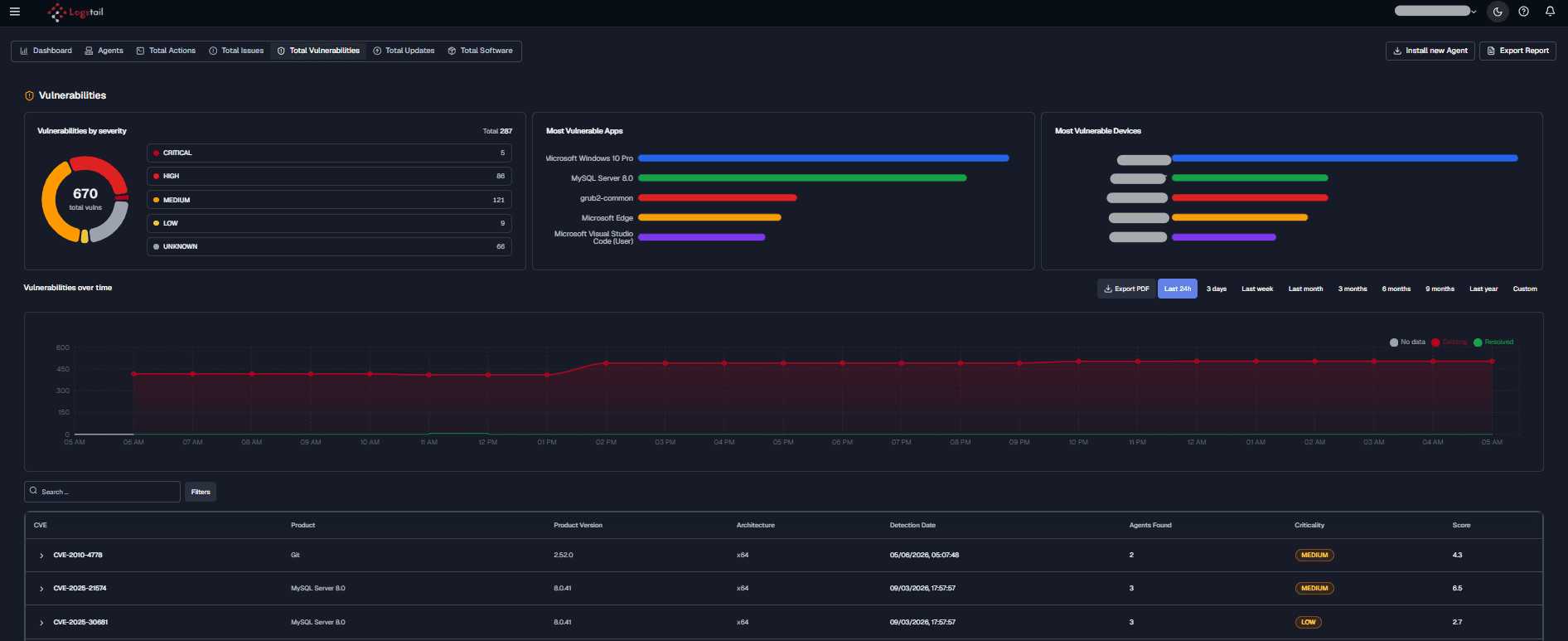
Total Vulnerabilities
Review vulnerabilities associated with the endpoint, including severity, affected software, remediation priority, and exposure context.
Collectors Panel
The Collectors panel appears in the agent Overview tab and shows collector installation or running status for the selected endpoint.
Collectors include:
Common collector statuses include:
Running
The collector is installed and actively running.
Not Installed
The collector is not currently installed on the endpoint.
Use this panel to confirm whether the endpoint is collecting the expected telemetry.
For example:
Check Events collector
If Windows event data is missing, confirm that the Events collector is installed and running.
Check Metrics collector
If endpoint metrics are missing, confirm that the Metrics collector is installed and running.
Check SIEM collector
If SIEM telemetry is missing, confirm that the SIEM collector is running.
Check Network collector
If network data is missing, confirm that the Network collector is installed and running.
Check Logs collector
If log data is missing, confirm that the Logs collector is installed and running.
Remote Actions Panel
The Remote Actions panel appears in the agent Overview tab and lists supported actions for the selected endpoint.
Available actions include:
Forensics Collection
Collects forensic artifacts from the endpoint.
Refresh Inventory
Updates endpoint inventory and collection data.
Restart Agent
Restarts the Logstail agent service on the endpoint.
Update Agent
Updates the endpoint agent where supported.
Restart Workstation
Restarts the selected workstation.
Shutdown Workstation
Shuts down the selected workstation.
Isolate Endpoint
Places the endpoint into isolation mode where supported.
Execute Command
Opens a confirmation dialog where an administrator can enter and run an approved command on the selected endpoint. Use this action only for trusted, audited troubleshooting or response tasks.
Operational note
Execute Command can run commands on the selected endpoint. Use it only for approved investigation, troubleshooting, or response tasks. Review the command carefully before confirming, and avoid running destructive or untrusted commands.
Operational note
Use remote actions only when needed and authorized, because some actions can affect endpoint availability or network connectivity.
Total Actions
Use Total Actions to review historical, pending, completed, or failed actions executed through agents.
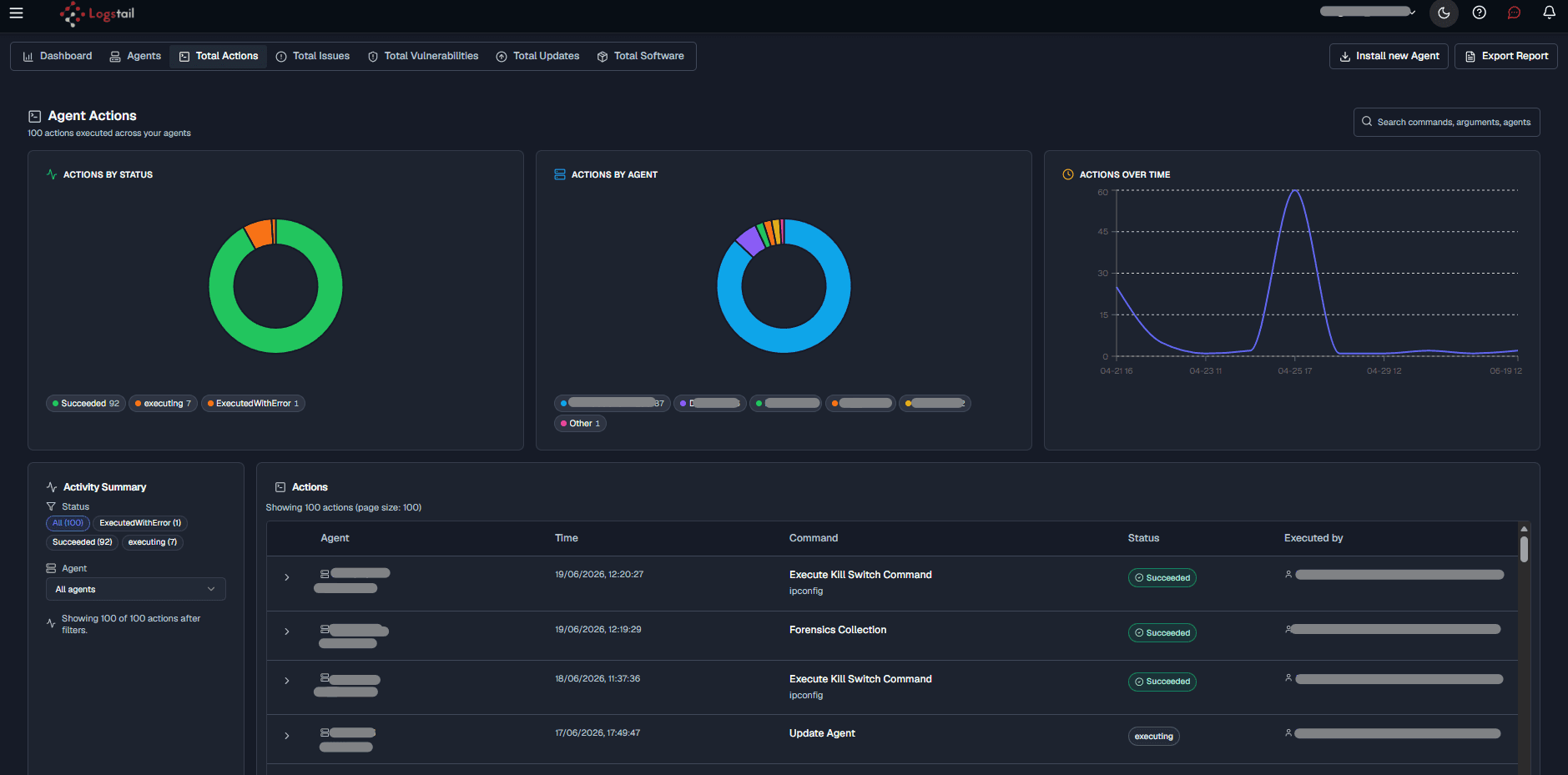
This tab helps teams understand action activity across the endpoint fleet.
Total Issues
Total Vulnerabilities
Patch and Update Review
Logstail helps review patch and vulnerability posture, but patch deployment may depend on the organization’s endpoint management or patch management tools.
Total Software
Use Total Software to review software detected across endpoints.

This tab is useful for inventory, investigation context, vulnerability review, and comparing installed applications across systems.
Forensic Files
Forensic files appear after a forensic collection action completes.
Use forensic files to download investigation packages collected from endpoints. These packages include endpoint artifacts such as running processes, network connections, scheduled tasks, services, logs, user information, DNS cache, and other investigation data.
Export Reports
The Agents page provides report export options such as:
Use exports for compliance evidence, internal reporting, offline review, or security operations handoff.
Common SOC Workflows
Troubleshooting
Agent is missing from the table
- 1
Confirm the agent is installed, configured with the correct stack or token, and able to reach the Logstail platform.
Agent shows offline or stale
- 1
Check endpoint connectivity, service status, firewall rules, and the Last Seen timestamp.
Agent data looks incomplete
- 1
Confirm the required collectors and modules are enabled.
- 2
Some tabs depend on available telemetry.
Collector shows Not Installed
- 1
Install or enable the required collector for the expected telemetry type.
- 2
Install Events for logs, Metrics for system metrics, Network for network visibility, and SIEM for SIEM telemetry.
Vulnerabilities do not appear
- 1
Confirm vulnerability scanning or the required module is enabled.
- 2
Confirm the endpoint has completed a scan.
Grouping action is not available
- 1
Confirm that two or more agents are selected.
- 2
If not visible, the current user may not have permission.
Remote actions are not visible
- 1
Depends on permissions, agent status, endpoint state, or platform configuration.
Forensic files are not available
- 1
Forensic files appear only after a forensic collection action completes.
Export fails
- 1
Retry export and reduce filters or time scope if the dataset is large.
Best Practices
Review agent health
Review agent health regularly.
Investigate quickly
Investigate offline or stale agents quickly.
Use grouping
Group agents by operational ownership.
Keep agents updated
Keep agent versions updated.
Focus with filters
Use filters to focus on high-risk endpoints.
Review issues and vulnerabilities
Review Total Issues and Total Vulnerabilities during routine SOC checks.
Check collectors
Check the Collectors panel when expected telemetry is missing.
Use remote actions carefully
Use remote actions only when needed and authorized.
Control forensic usage
Download forensic packages only for approved investigations.
Export reports
Export reports for audits and handoffs.
Validate data
Validate endpoint telemetry in Analytics → Discover when investigating alerts.
Related Pages
| Page | Description |
|---|---|
| Logstail Agent | Download and configure the Logstail Agent before endpoints can appear in the Agents page. |
| Windows Agent | Install and configure the agent on Windows endpoints. |
| Linux or Unix Agent | Install and configure the agent on Linux or Unix endpoints. |
| Discover | Validate that endpoint logs, metrics, network data, and SIEM telemetry are arriving. |
| Dashboards | Review endpoint telemetry through visual dashboards. |
| Pre-Built Dashboards | Add dashboards related to Windows, Linux, metrics, network, SIEM, or enabled modules. |
| Reports | Export or generate endpoint-related reports. |
| Alerts | Review alerts generated from endpoint telemetry and SIEM detections. |
| Cases | Group endpoint-related alerts into investigation cases. |