
Contacts
The Contacts page is used to manage the people or teams that may need to be reached during security operations, incident response, escalation, and notification workflows.
A contact can represent an internal responder, SOC lead, system owner, compliance stakeholder, manager, external partner, or any other person who should be available from the SOAR workspace.
Where to find it
Open the main navigation menu and go to:
Navigation path
Application route
/soar/contactsWhat this page is used for
Use the Contacts page when your team needs a centralized contact directory for SOAR operations.
Maintain responders
Keep responder and escalation contact details up to date.
Track ownership
Store system owners and responsible teams.
Store contact details
Manage phone numbers, emails, and locations.
Update responsibilities
Adjust ownership when teams or roles change.
Support investigations
Quickly find contacts during active incidents.
Clean outdated data
Remove stale or unused contact records.
Page Overview
The Contacts page provides a searchable table of all contact records along with controls to create, edit, and delete entries.

The page includes:
Contact Table
The contact table provides a compact overview of stored SOAR contacts and their operational details.
Heads up
On smaller screens, the Actions column may require horizontal scrolling to view edit and delete options.
Search Contacts
Use the search field to find contacts quickly without manually scanning the table.
Add a Contact
Use Add Contact to create a new SOAR contact record.
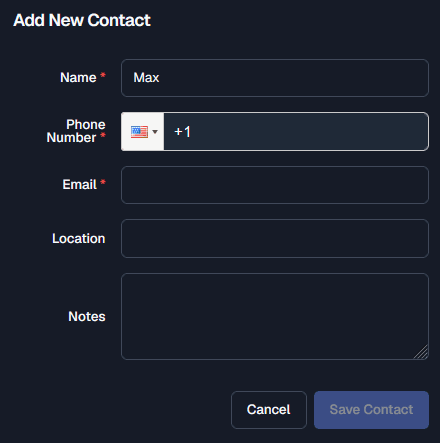
Recommended Fields
Good contact hygiene
Use clear naming like “Jane Doe — Windows Platform Owner” instead of vague entries.
Edit a Contact
Use Edit when contact information changes.
Delete a Contact
Use Delete when a contact is no longer relevant.
Caution
Before deleting, confirm that no workflows depend on the contact.
Typical Workflow
Security Notes
Troubleshooting
Contact not visible
- 1
Clear search field
- 2
refresh the page
- 3
Confirm contact exists
Cannot access page
- 1
Check permissions
- 2
Verify SOAR access
Best Practices
Use consistent naming
Standardize teams and roles to avoid confusion and obscurity.
Keep data current
Update contact details regularly to avoid alert loss and security gaps.
Add useful context
Include meaningful notes that communicate context and inform your team.
Remove stale contacts
Clear outdated entries.
Review regularly
Validate escalation contacts for proper operations.
Avoid sensitive data
Never store secrets on contact information.