Cases
The SOAR Cases page is the incident response workspace for grouping alerts, tracking investigation progress, documenting evidence, and coordinating response activity in your Logstail SOAR environment.
A case acts as the operational container for an investigation. Instead of treating every alert as an isolated event, analysts can group alerts, assets, tasks, notes, IOCs, and playbooks into one structured workflow.
Where to find it
Open the main navigation menu and go to:
Navigation path
Application route
/soar/case-managementWhat this page is used for
Use the Cases page to:
Review cases
View active and historical investigations.
Create investigations
Create new cases manually or from alerts.
Group alerts
Combine related alerts into a single investigation.
Track ownership
Assign owners and coordinate response work.
Manage evidence
Track assets, IOCs, notes, and tasks.
Close cases
Update and finalize investigations.
What a Case is
A case is an investigation record that collects everything needed to understand and resolve a security incident.
A case can include:
Cases are the handoff point between alert triage and incident response. Alerts show that something happened — cases help teams manage what happens next.
Case Lifecycle
Cases help track an investigation from initial triage to final closure.
Case Lifecycle
| Stage | Description |
|---|---|
| New | A case has been created but investigation work has not fully started. |
| In Progress | Analysts are reviewing alerts, assets, IOCs, notes, tasks, or response actions. |
| Pending | The case is waiting on another team, user, validation step, or external evidence. |
| Closed | The investigation is complete and the outcome has been documented. |
Page Overview
The Cases page provides a list-style case management view with search, table actions, and detailed investigation workflows.
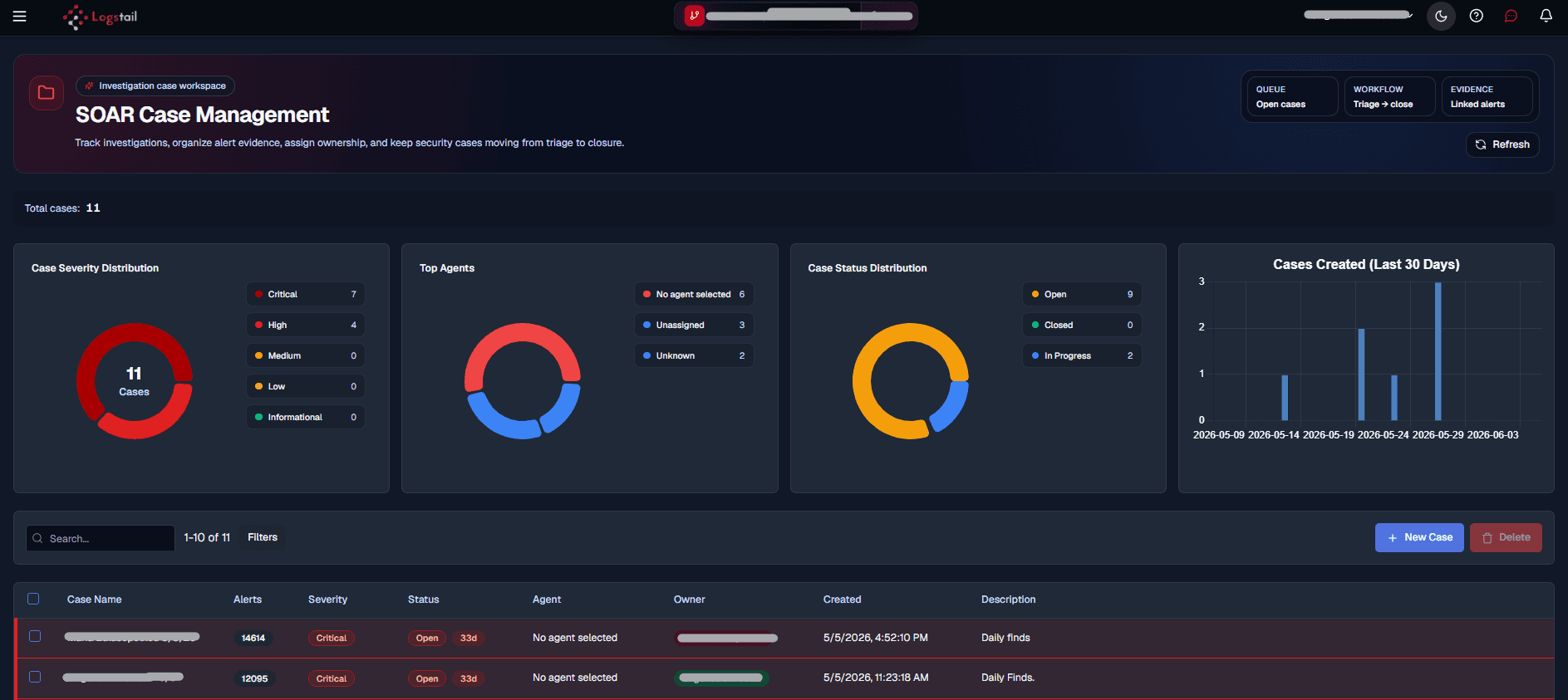
The page allows you to:
When to create a case
Create a case when an alert or group of alerts needs structured investigation, ownership, evidence tracking, or response coordination.
Confirmed suspicious activity
Create a case when an alert appears suspicious or requires deeper validation.
Multiple related alerts
Create a case when several alerts appear connected to the same user, host, IOC, or attack chain.
Cross-team response
Create a case when work must be assigned, tracked, or handed off between analysts or teams.
Evidence required
Create a case when notes, IOCs, assets, tasks, or reports need to be preserved.
Incident escalation
Create a case when the activity may require formal incident response.
Shift handoff
Create a case when investigation work needs to continue across SOC shifts.
Creating and Managing Cases
Cases can be created in multiple ways depending on the workflow.
Create a New Case
Use New Case when a new investigation needs to be created manually.
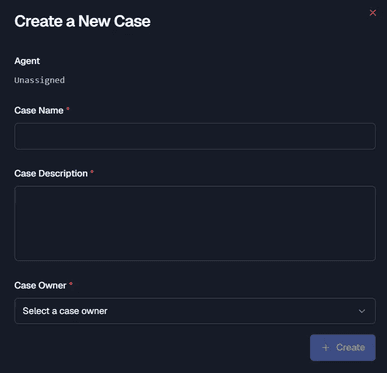
Create a new case when:
Create a Case from an Alert
Cases can also be created directly from alerts during triage.

This approach ensures alert context is preserved when escalating to a formal investigation.
Case Details
Opening a case reveals a structured investigation workspace organized into tabs.
Key Sections
These sections help analysts break down complex investigations into manageable parts.
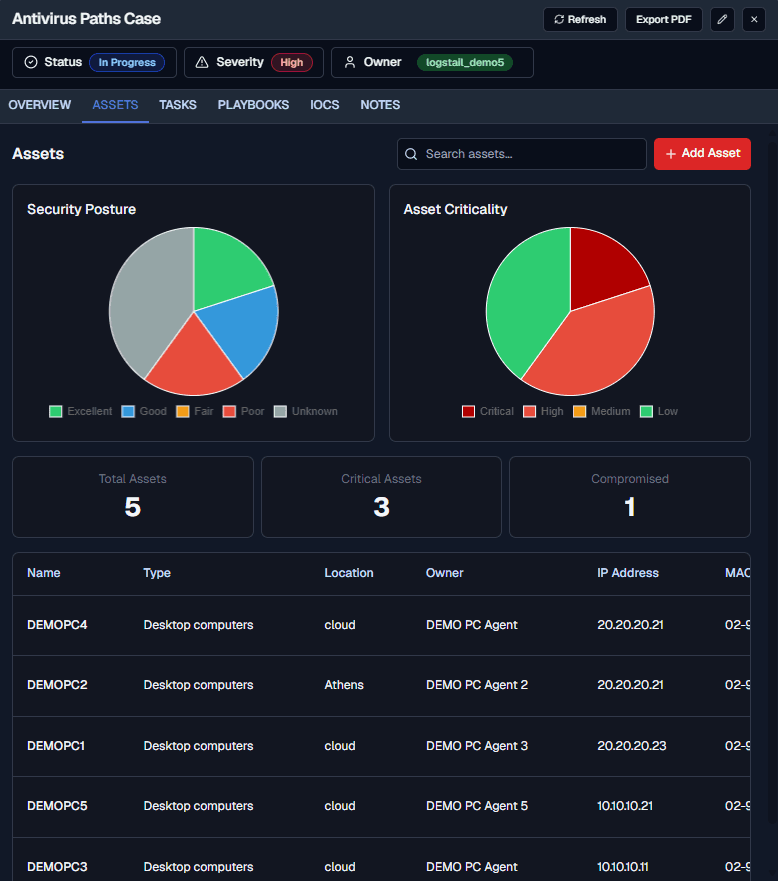
Assets
Use the Assets tab to track systems, users, and infrastructure involved in the incident.
Assets help define scope. A case affecting multiple systems requires a broader response.
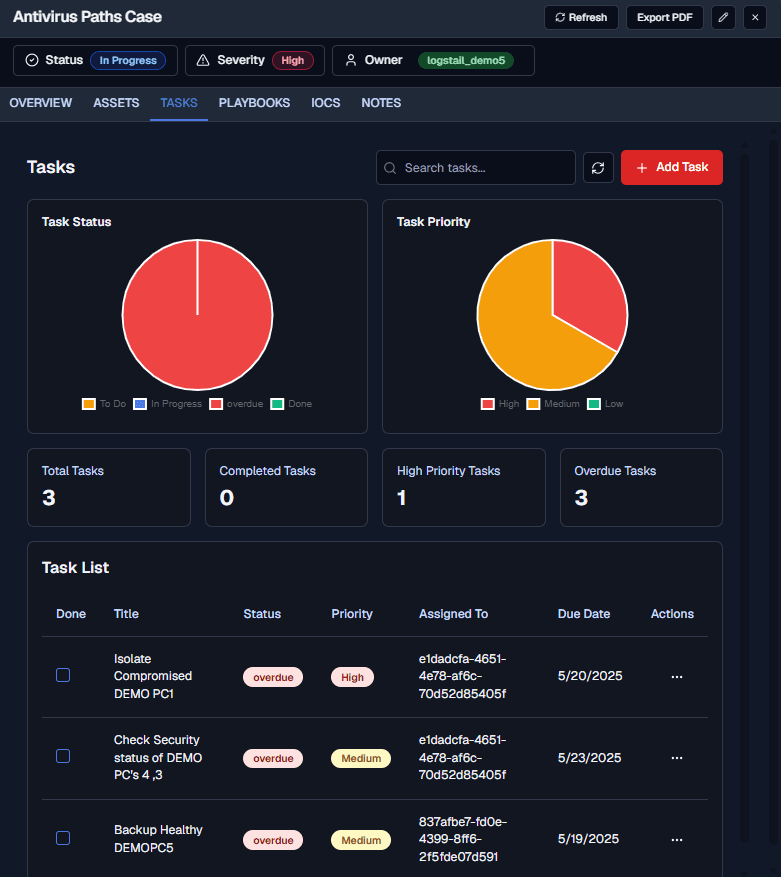
Tasks
The Tasks tab breaks investigation work into actionable steps.
Good tasks are specific and actionable. Avoid vague steps — clear tasks improve coordination.
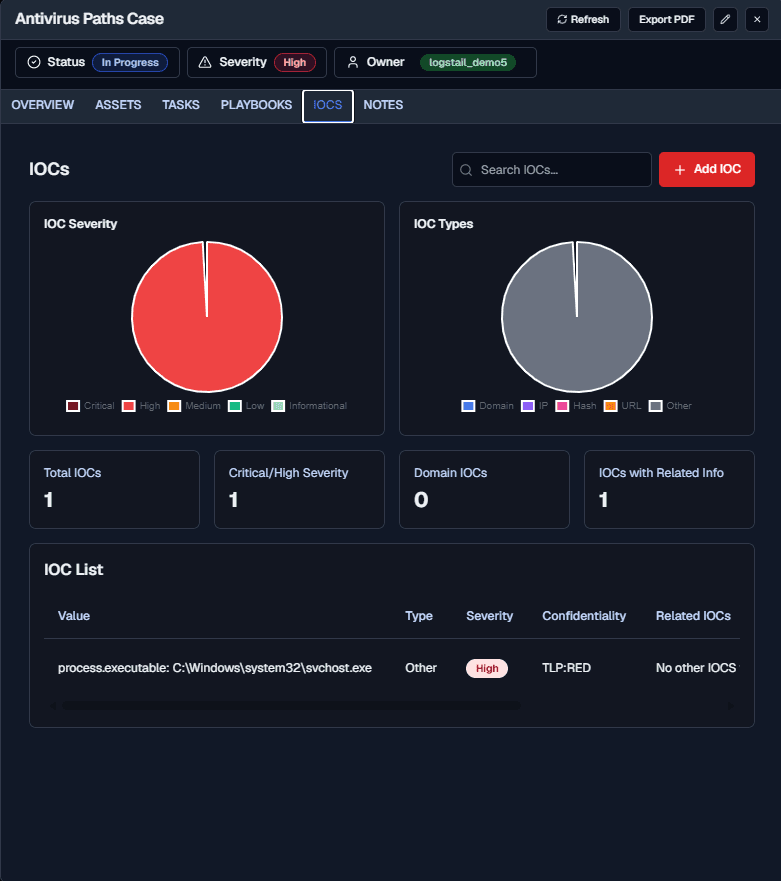
IOCs
The IOCs tab stores indicators and investigation evidence.
Use IOCs to track suspicious artifacts, correlate activity, and enrich investigations.
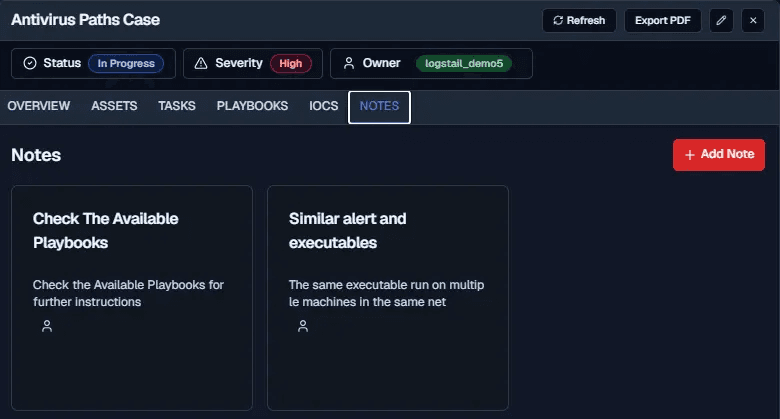
Notes
The Notes tab captures analyst decisions and investigation context.
Documentation tip
Write notes clearly so another analyst can continue the investigation without needing additional context.
Investigate a Case
Ownership and Handoff
Operational note
Assign a clear case owner early. Ownership helps prevent duplicate work, missed follow-up, and unclear responsibility during shift handoff.
Use case ownership when:
Troubleshooting
Cases page not visible
- 1
Check that the user has permission to access SOAR Cases.
- 2
Verify that SOAR access is enabled for the current subscription or tenant.
- 3
Confirm the user is in the correct stack or tenant context.
Cannot modify a case
- 1
Confirm the case is still open or editable.
- 2
Verify the current user has permission to edit cases.
- 3
Check whether ownership or role restrictions apply.
- 4
Refresh the page and retry the update.
Case not found
- 1
Check the search query.
- 2
Clear filters that may hide the case.
- 3
Confirm the selected tenant or stack context.
- 4
Verify the case was not deleted.
Alert is not linked to the case
- 1
Confirm the alert was added to the correct case.
- 2
Refresh the case details page.
- 3
Check whether the alert belongs to another case.
- 4
Return to SOAR Alerts and add the alert again if needed.
Case has missing context
- 1
Review linked alerts, assets, IOCs, notes, and tasks.
- 2
Add investigation notes explaining what is known and unknown.
- 3
Use Discover, Alerts, or Playbooks to gather supporting evidence.
Best Practices
Use clear case names
Make cases easy to search and understand.
Assign ownership early
Ensure that the accountability is clear from the start.
Keep investigations structured
Use tasks, assets, and notes consistently.
Document decisions
Record reasoning for future review.
Group alerts carefully
Avoid mixing unrelated activity.
Review cases regularly
Keep the investigation queue clean for future use.