
Integration Runners
The Integration Runners feature provides a centralized control plane for registering, deploying, managing, grouping, and monitoring runtime workers used to execute automation workloads.
An integration runner is a runtime worker that can be installed on a target machine and used to execute integration jobs. Runners are especially useful when automation actions need to run inside a specific network, close to internal systems, or within a controlled execution environment.
Where to find it
Open the main navigation menu and go to:
Navigation path
Application route
/runnersOperational note
Runners are used when automation jobs need controlled execution paths, access to internal systems, or execution from a specific network segment.
What this page is used for
Runners act as controlled runtime workers for automation activity. Instead of giving Logstail direct access to every internal system, a runner is installed in the environment where access is needed.
For example, a runner can be deployed in a production network where it can reach a firewall. Logstail can then use that runner to execute an approved firewall integration action.
Run internal actions
Run automation actions against private or internal systems that are not directly reachable from the platform.
Execute security actions
Execute firewall, endpoint, identity, threat intelligence, or enrichment actions from the correct environment.
Segment automation
Separate automation execution by environment, network zone, tenant, team, or operational purpose.
Separate prod and test
Keep production and testing automation paths isolated from each other.
Control credential access
Limit which runner or runner group can use credentials for a specific environment.
Track execution
Review job execution, logs, responses, and runner-related errors.
Page Layout
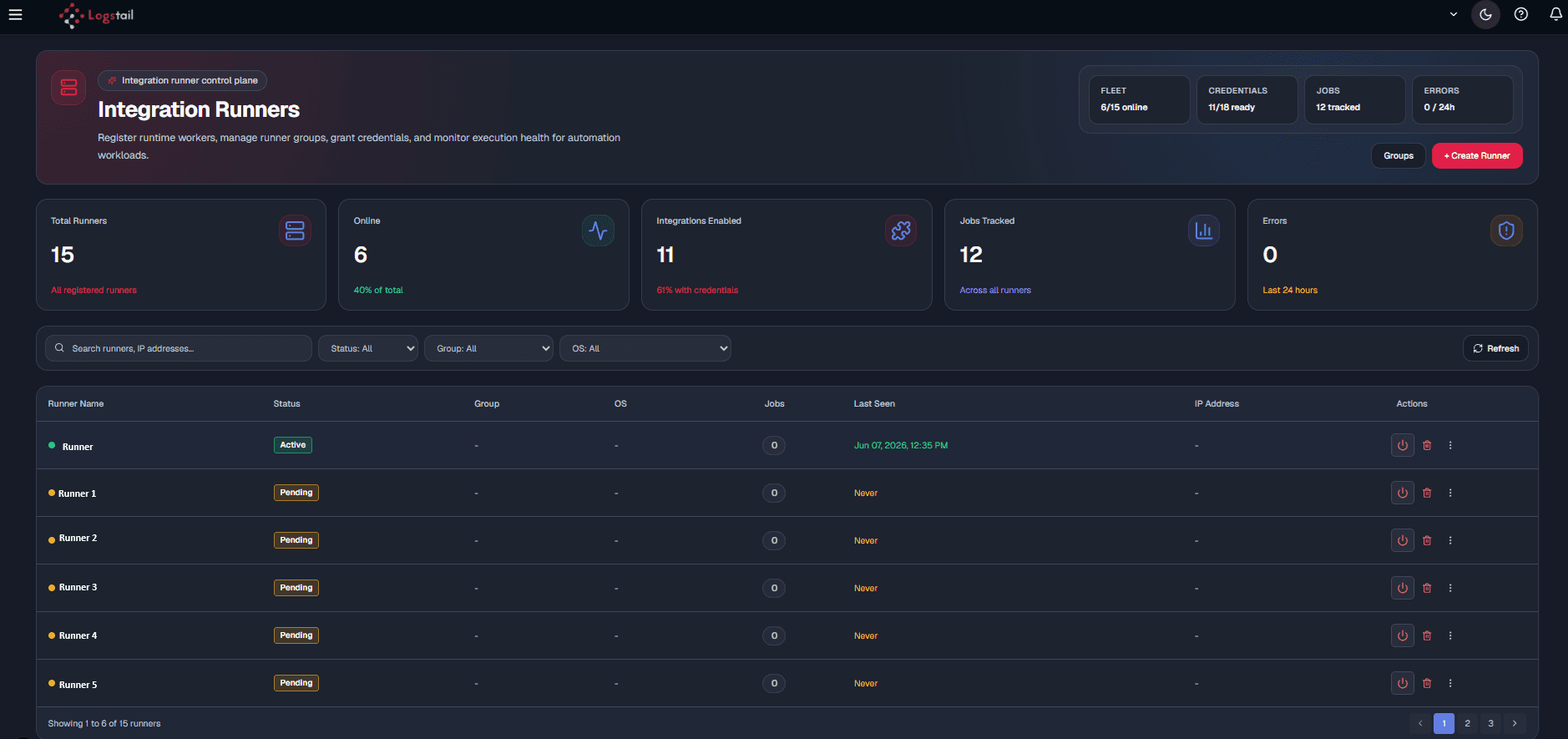
The Runners page includes the following main areas:
Summary cards
The top section gives a quick operational view of the runner environment.

The 4 cards on the top right of the page are as follows:
Fleet Summary
Shows how many runners are online vs. total registered. Example: 6/15 online — meaning 6 runners are connected out of 15 registered. Use this to detect runner availability issues such as host power state, service status, firewall rules, or outbound connectivity.
Credentials Summary
Shows how many integrations have credentials ready for runner execution. Example: 11/18 ready — meaning 11 integrations have valid credentials. Helps determine how many integrations are ready for automation jobs.
Jobs Summary
Shows the number of jobs currently tracked across the runner system. Example: 12 tracked.
Errors Summary
Shows the number of runner-related errors recorded in the last 24 hours. Example: 0 / 24h.
Runner metric cards

The dashboard also shows runner metric cards such as:
Runner Metrics
| Metric | Meaning | |
|---|---|---|
| Total Runners | All registered runners, including active, pending, offline, or disabled. | |
| Online | Runners currently connected and available. | |
| Integrations Enabled | Integrations with usable credentials. | |
| Jobs Tracked | Jobs currently or recently tracked. | |
| Errors | Runner-related errors in the recent window. |
These cards are useful for quick health checks before relying on automation workflows.
Runner table
The runner table lists all registered runners. Each row represents one runner and includes its current operational status and management actions.

Table columns
Runner Table Columns
| Column | Description | |
|---|---|---|
| Runner Name | Nickname assigned to the runner. | |
| Status | Pending, online, offline, active, or disabled. | |
| Group | Assigned runner group. | |
| OS | Operating system of the runner host. | |
| Jobs | Number of jobs associated with the runner. | |
| Last Seen | Last check-in time. | |
| IP Address | Reported IP address. | |
| Actions | Disable, delete, or assign group. |
Runner statuses
Runner status helps determine whether a runner can execute automation jobs.
Runner Statuses
| Status | Meaning | What to check |
|---|---|---|
| Pending | Runner created but not connected. | Check install command, service state, and connectivity. |
| Active / Online | Runner connected and available. | Verify group assignment and credential access. |
| Offline | Runner exists but is not connected. | Check host power, service state, network, firewall. |
| Disabled / Deactivated | Runner intentionally disabled. | Re-enable only after validating host and need. |
Runner status tip
If a runner is Pending and Last Seen is Never, the runner record exists in Logstail, but the deployment command has not completed successfully on the target host.
Searching and filtering runners
The page provides controls for quickly finding runners in larger environments.
Search by runner name or IP address
Use the Search runners, IP addresses field to locate a specific runner.
Example searches:
Filter by status
Use the Status dropdown to show runners by state.
Common values include:
Filter by group
Use the Group dropdown to show runners assigned to a specific runner group.
Group filtering is useful when runners are separated by:
Example groups:
Filter by operating system
Use the OS dropdown to filter runners by deployment platform.
Common values include:
This helps identify which runners are deployed on Linux/Unix systems and which are deployed on Windows systems.
Refresh runner data
Click Refresh after installing a runner, changing a runner state, or updating group assignments.
This reloads runner data and helps confirm whether a runner has checked in successfully.
Runner detail panel
Selecting a runner opens a detail panel. This panel provides runner-specific information and operational context.
The runner detail panel includes tabs such as:
Use the X button to close the panel.
Overview tab

The Overview tab displays core runner metadata.
Common fields include:
Runner Detail Fields
| Field | Description | |
|---|---|---|
| Groups | Assigned runner group. | |
| OS | Operating system and architecture. | |
| IP Address | Reported IP address. | |
| Last Seen | Last check-in time. | |
| Status | Current runner state. | |
| Jobs | Job activity or count. |
Use this tab to confirm that the runner is connected, assigned correctly, and reporting from the expected host.
Credentials tab
The Credentials tab shows the credential access available to the selected runner or its assigned group.
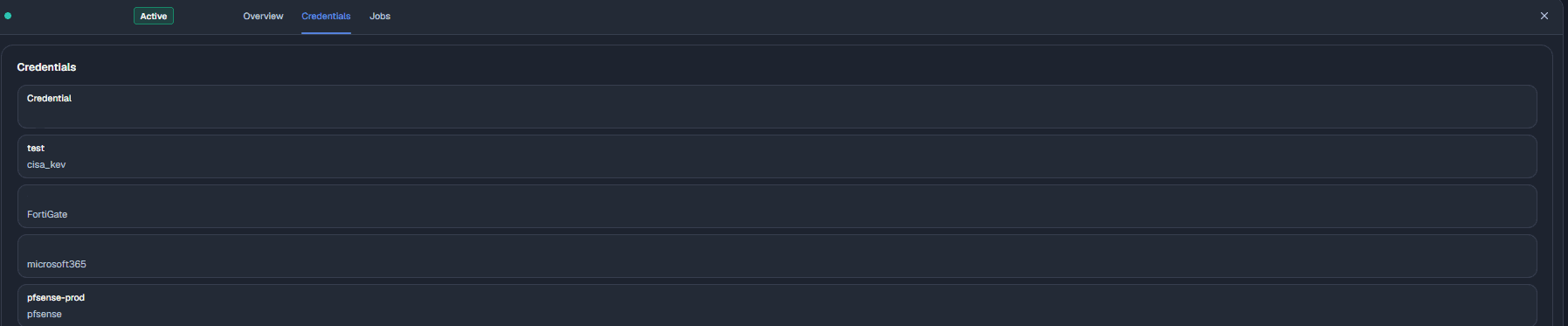
Credentials determine which integrations a runner is allowed to use. This is a key security control, as a runner should not automatically receive access to every integration credential.
A recommended approach is to scope credentials by group:
Runner Group Credential Scope
| Runner group | Credential scope | |
|---|---|---|
| Production runners | Production-only credentials | |
| Testing runners | Lab or testing credentials | |
| SOC runners | SOC-approved response credentials | |
| DMZ runners | Credentials for DMZ-accessible systems |
Runner Credentials
Grant runner credentials using the principle of least privilege. A runner deployed in a testing environment should not receive production firewall or identity provider credentials unless there is a clear operational requirement.
Jobs tab
The Jobs tab shows jobs executed by or associated with the runner.
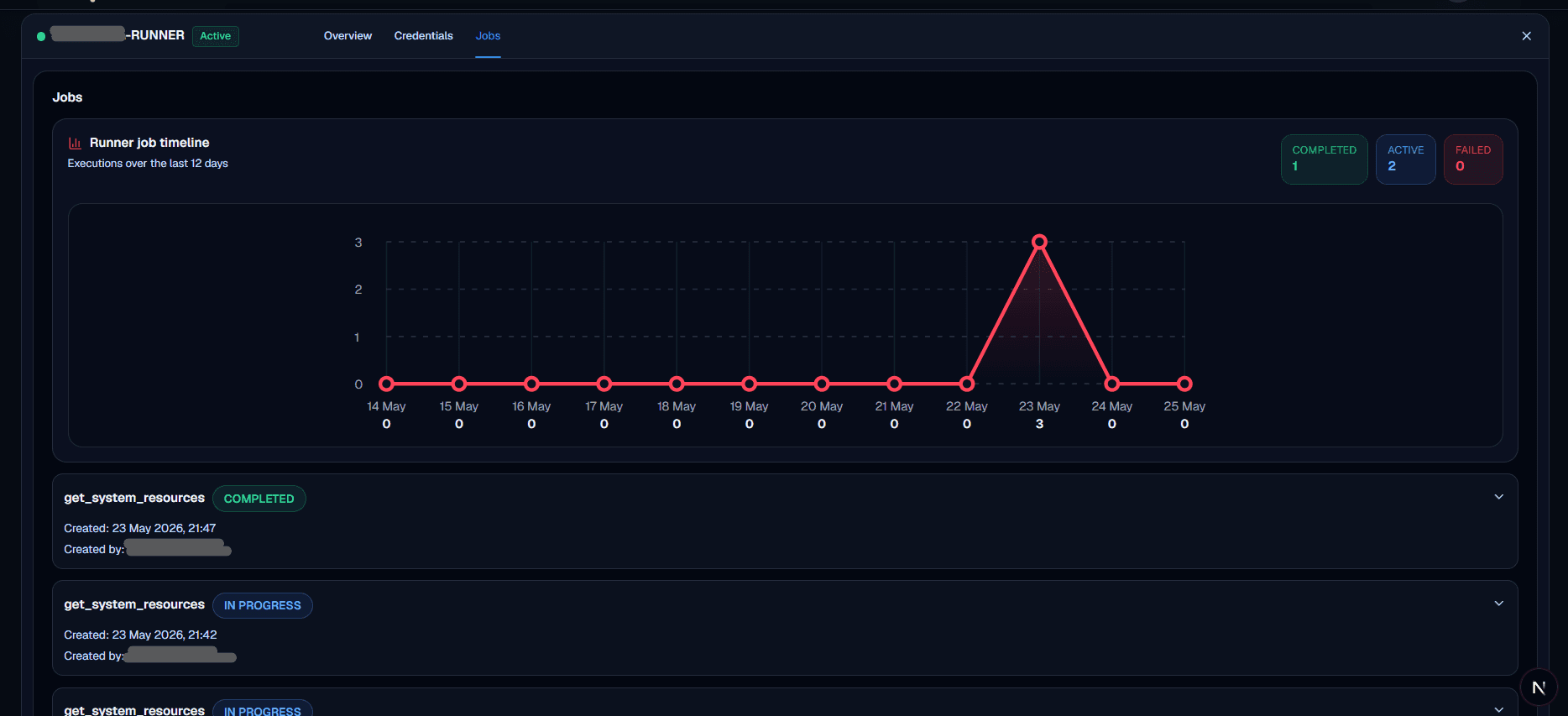
Use this tab to review:
When troubleshooting automation, start with the Jobs tab to confirm whether the job reached the runner and whether the runner returned a successful response.
Job details and responses
Runner job details can include structured output from executed integration actions.
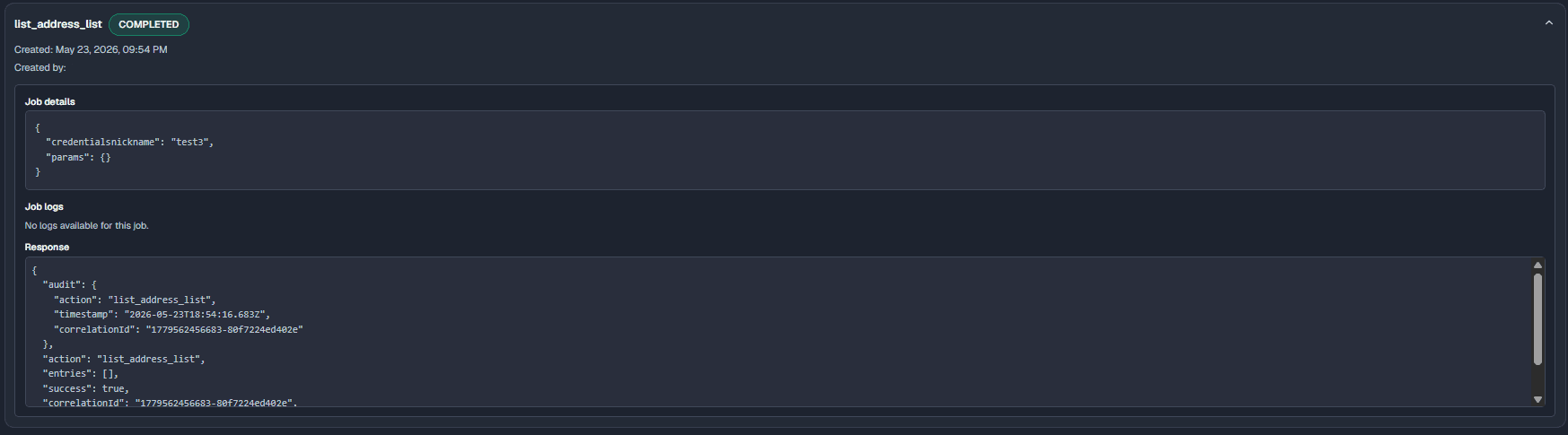
A job response may include fields such as:
Job Response Fields
| Field | Meaning | |
|---|---|---|
| Action | Executed action name. | |
| Success | Whether the action succeeded. | |
| Resources | Returned data such as logs, API responses, or system info. |
The response area may be scrollable when the payload is large.
Use job response output to validate:
Creating a runner
The Create Runner workflow registers a new runner and generates an install command.
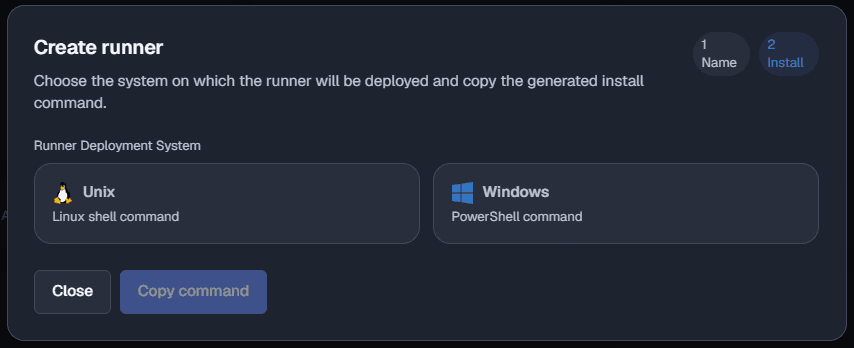
The workflow has two main steps:
Step 1 — Name the runner
Click Create Runner and enter a runner nickname.
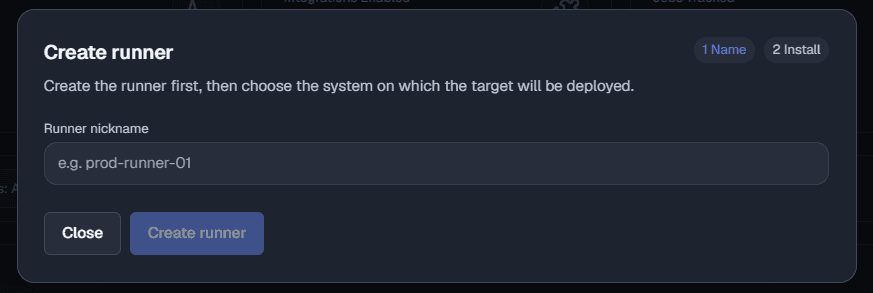
Recommended naming patterns:
A good runner name should identify:
Click Create runner to register the runner in Logstail.
The button may remain disabled until a valid runner nickname is entered.
Step 2 — Install the runner
After the runner is created, Logstail moves to the install step.
Choose the deployment system that matches the target host:
The page generates a deployment command for the selected operating system.
Installer command execution
Runner installation commands should only be executed on approved systems. Treat the generated command as sensitive because it registers an execution worker into the SOAR automation environment.
Installing a Unix/Linux runner
Choose Unix to generate a Linux shell command.
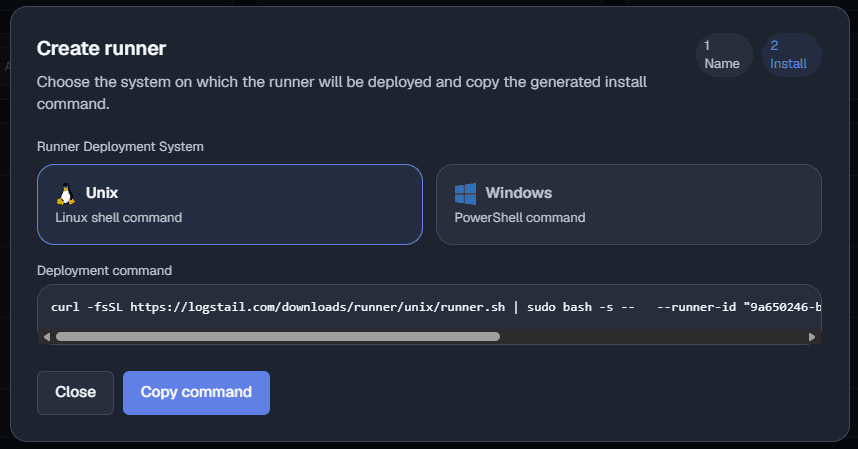
To install a Unix/Linux runner:
Before running the Unix command, verify that:
Installing a Windows runner
Choose Windows to generate a PowerShell command.
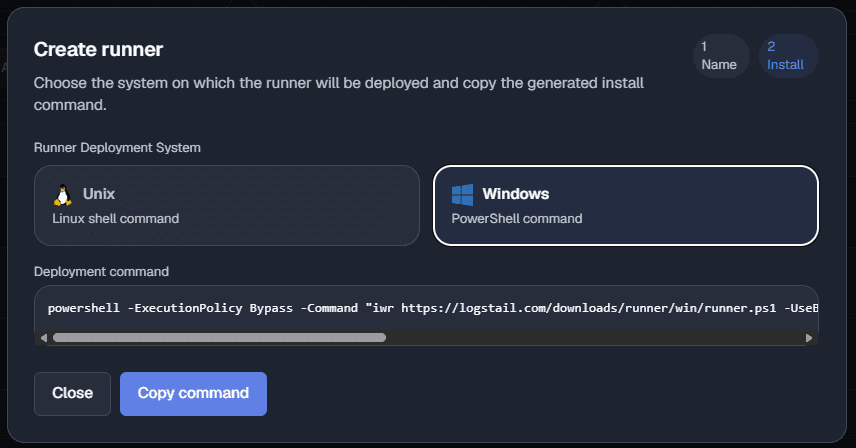
To install a Windows runner:
Before running the Windows command, verify that:
Copying the install command
Use the Copy command button to copy the generated deployment command to the clipboard.
This reduces copy errors and helps avoid accidentally changing the command.
After the command is executed, the runner may initially appear as Pending. Click Refresh to confirm the runner has checked in and moved to an active state.
Managing runner groups
Runner groups organize runners and control credential access.
Use groups to separate execution environments by:
A runner should be added to a group before using that group for integration execution.
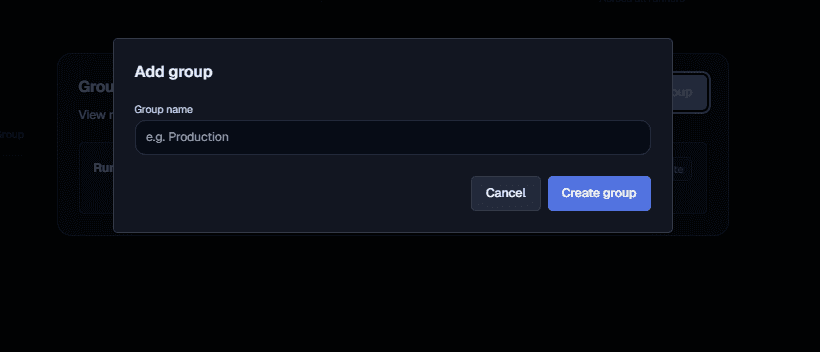
Creating a runner group
To create a runner group:
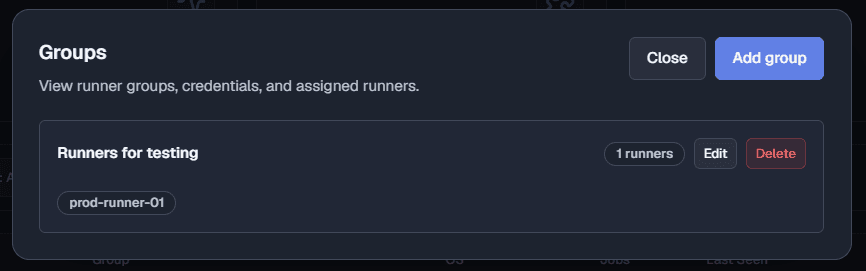
Example group names:
A group name should clearly describe what the group is used for.
Adding a runner to a group
After the runner is added to a group, the runner can use credentials granted to that group.
Granting credentials to a runner group
Runner groups can be edited to control which integration credentials are available to runners in that group.
To grant credentials:
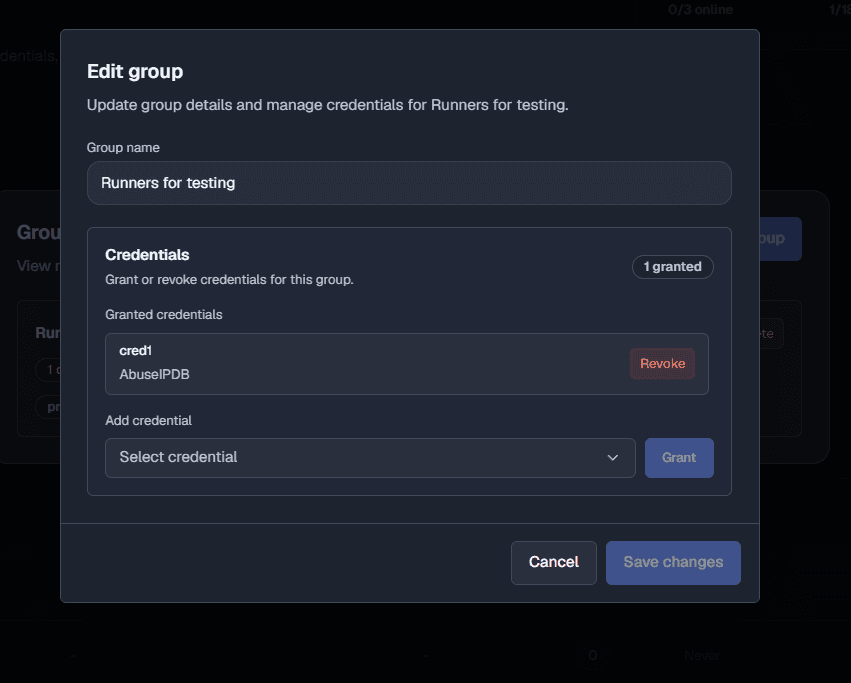
Granted credentials may show both the credential name and the related integration.
Example:
pfsense-prod, pfsense
This means the pfsense-prod credential belongs to the pfSense integration and is available to the group.
Revoking credentials from a group
Use Revoke when runners in a group should no longer have access to a credential.
Revoking a credential can break jobs or playbooks that depend on it, so review active workflows before removing access.
Good reasons to revoke credentials include:
Runner actions
Each runner row includes actions for lifecycle management.
Common runner actions include:
Disable runner
Use Disable runner when the runner should temporarily stop executing jobs.
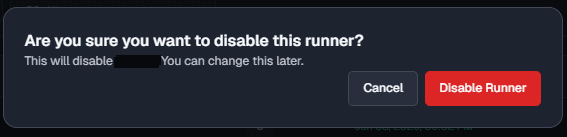
Common reasons to disable a runner:
Disabling is reversible. After disabling, the runner should not be used for execution until it is re-enabled.
Delete runner
Use Delete runner only when the runner is no longer needed.
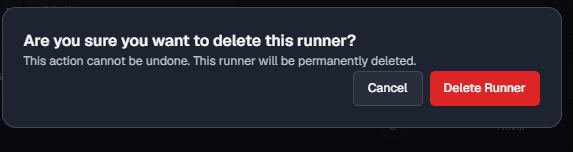
Common reasons to delete a runner:
Runner deletion
Deleting a runner is permanent and cannot be undone. Confirm that no active integrations, jobs, or playbooks depend on the runner before deleting it.
Recommended SOC workflow
Use the following workflow when deploying runners in a security operations environment:
Troubleshooting
Runner stays Pending
- 1
Confirm the install command was executed on the target host.
- 2
Confirm the runner service started successfully.
- 3
Verify the host can reach Logstail.
- 4
Check whether firewall or proxy rules are blocking connectivity.
- 5
Confirm the command was copied correctly and was not modified.
- 6
Confirm the host has the required installation privileges.
Runner is Offline
- 1
Confirm the runner host is powered on.
- 2
Confirm the runner service is running.
- 3
Verify network connectivity is available.
- 4
Check whether firewall rules allow outbound communication.
- 5
Confirm the runner has not been disabled.
- 6
Check whether the host moved to another network segment.
Job fails on a runner
- 1
Confirm the selected runner is correct.
- 2
Check the runner status.
- 3
Verify the runner group assignment.
- 4
Confirm the required credential is granted to the runner group.
- 5
Validate the integration credential is still active.
- 6
Confirm the target system is reachable from the runner host.
- 7
Review job logs and the returned response payload.
Credential is not available to a runner
- 1
Confirm the runner is assigned to the correct group.
- 2
Confirm the credential is granted to that group.
- 3
Verify the integration has a configured credential.
- 4
Save any group changes.
- 5
Refresh runner data and check the Credentials tab again.
Best Practices
Use approved hosts
Deploy runners only on approved and managed hosts.
Use clear runner names
Name runners by environment, operating system, network zone, or purpose.
Separate environments
Separate production, staging, testing, DMZ, and internal runners.
Grant least privilege
Grant runner credentials using the minimum access required for approved automation jobs.
Protect production credentials
Avoid giving production credentials to testing or lower-trust runner groups.
Review sensitive actions
Review job responses after sensitive or high-impact integration actions.
Disable during maintenance
Disable runners during maintenance, network migration, or temporary isolation.
Delete untrusted runners
Delete runners from decommissioned, compromised, or untrusted hosts.
Rotate credentials
Rotate credentials regularly and after staff, vendor, or environment changes.
Patch runner hosts
Keep runner hosts patched, monitored, and protected like other automation infrastructure.
Monitor runner health
Review runner status, last seen time, job errors, and queue behavior regularly.
Audit job history
Use runner job history to verify execution activity and support investigations.
Related Pages
Related pages
| Page | Description |
|---|---|
| SOAR Alerts | Review and triage detected security events. |
| SOAR Integrations | Configure vendor integrations, credentials, actions, and job history. |
| SOAR Playbooks | Build automation workflows that may use integrations and runners. |
| SOAR Monitors | Create alert monitors that can trigger response workflows. |