Account Overview
The Account Overview page gives users a high-level view of their Logstail account, subscription, usage, and stack information. It is the main place to review plan status, monitor ingestion usage, check retention details, and access account-related actions.
Where to find it
Open the main navigation menu and go to:
Navigation path
Application route
/my-accountWhat This Page Is Used For
Use the account page to:
Review account status
Review account and subscription status from the Account page.
Monitor data usage
Monitor daily and monthly data usage across the account.
Check retention
Check log retention information before relying on historical data.
View account details
View stack and account details in one place.
Access support
Access support or help options when assistance is needed.
Open account options
Open account management options and change your password etc.
Main Sections
Account Metrics
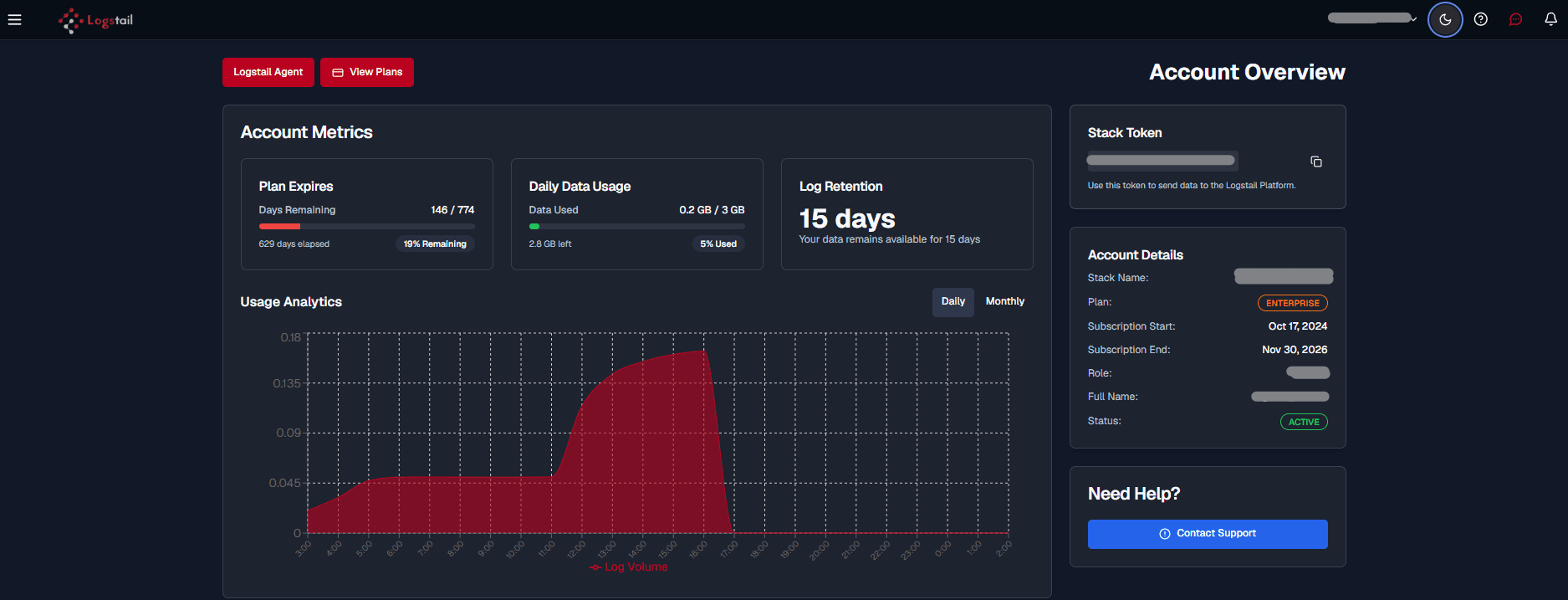
The account metrics area summarizes key account-level values. These metrics help users understand how the current stack is being used and whether the environment is within expected operational limits.
Common metrics include:
Account Details
The account details section shows account and stack-related information. This includes stack name, plan, subscription start-end dates, role, full name and status.
Data Usage
The Account page helps users monitor ingestion volume. This is useful for SOC teams and administrators who need to track how much data is being sent into Logstail.
Data usage visibility helps teams:
Log Retention
The retention section shows how long collected logs are kept in the platform. This is important for investigations, compliance, and historical analysis.
Security teams should confirm retention settings match their internal incident response and audit requirements.
Stack Token
The Stack Token is a unique authentication key used to install your Windows Agent to the Logstail platform. The agent uses this token to securely authenticate and start sending data to your Logstail environment.
Support Section
At the bottom right, a “Need Help?” panel provides a “Contact Support” button which will open a window so you can send an email to the Logstail Support Team.
Typical Workflow
Operational note
The Account page is especially useful for administrators because it provides a quick health check of account capacity and subscription state. For SOC usage, this page can help confirm whether missing data is caused by ingestion limits, account status, or retention constraints before troubleshooting dashboards, alerts, or analytics.
Troubleshooting
Data usage looks higher than expected
- 1
Check recently installed agents, dashboards, and integrations.
- 2
Review whether a new data source was added recently.
- 3
Look for verbose logging or duplicate ingestion.
Logs are not available for the expected time range
- 1
Review the retention information on the Account page.
- 2
Confirm the logs are inside the configured retention window.
Best Practices
Review usage regularly
Review account usage regularly to catch unusual activity early.
Watch ingestion spikes
Watch for ingestion spikes after onboarding new agents, dashboards, or integrations.
Confirm retention settings
Confirm retention settings before relying on historical logs for investigations.
Related Pages
| Page | Description |
|---|---|
| Invite Users | Invite and manage user access to the Logstail platform. |
| Profile Preferences | Update user profile settings, preferences, and account-related configurations. |
| Agents | Review endpoint activity and confirm that agents are sending data to the platform. |
| Windows Agent | Install and configure the Logstail Agent on Windows endpoints to enable log collection and SIEM telemetry. |
| Discover | Validate whether logs and telemetry are being ingested and searchable. |
| Dashboards | Monitor ingestion data and usage trends through visual dashboards. |
| Reports | Export account-related reports and usage summaries for audit or review. |
| Pre-Built Dashboards | Add dashboards to visualize ingestion data, metrics, and system activity. |
| Alerts | Review alerts to validate whether account activity and ingestion are working as expected. |
| Cases | Track investigations and confirm whether data availability supports case workflows. |