
Reports
The Reports page is used to generate, view, and download reports from Logstail analytics data.
Where to Find It
Open the main navigation menu and go to:
Navigation path
Application route
/reportsWhat This Page Is Used For
View reports
Access generated report output.
Download results
Export report files for review.
Create definitions
Build reusable report templates.
Generate from dashboards
Produce reports from visual panels or searches.
Schedule reports
Automate recurring report generation.
Share findings
Distribute reports to stakeholders.
Support compliance
Provide documentation for audits.
Preserve evidence
Store investigation-related output.
Page Layout
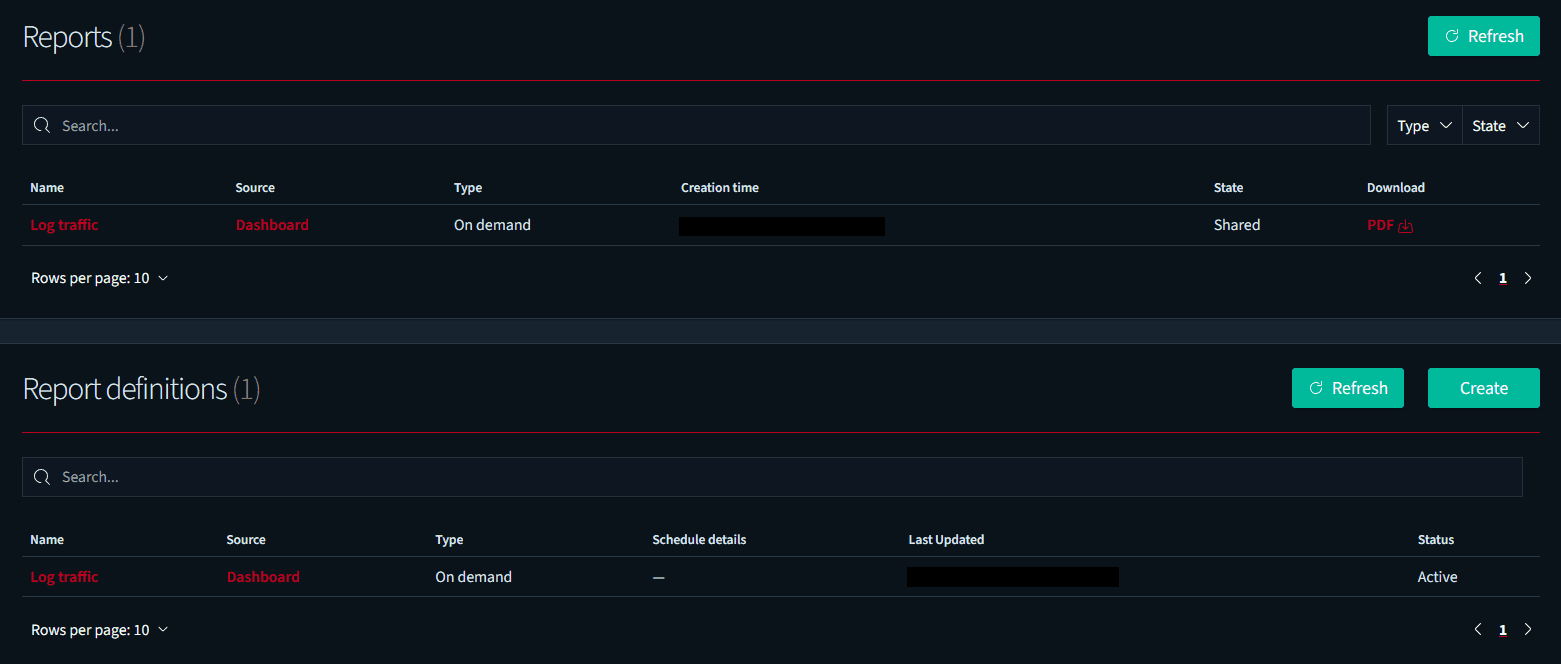
The Reports page is split into two operational areas:
Reports
Shows generated report outputs that can be reviewed, filtered, refreshed, and downloaded.
Report definitions
Shows reusable report templates that define the source, type, schedule, status, and update information.
Reports Table
The Reports table lists generated report files. Use this area when you need to find, download, or verify report output.
Name
Displays the report name so users can identify the generated output.
Source
Shows where the report data came from, such as a dashboard or another supported source.
Type
Shows whether the report was generated on demand or from another report type.
Creation time
Shows when the report was created.
State
Shows the current report state, such as shared or available.
Download
Provides the available download format, such as PDF.
Report Definitions Table
The Report definitions table lists reusable report configurations. Use this area to manage templates that can generate reports manually or on a schedule.
Name
Displays the report definition name.
Source
Shows which source the report definition uses.
Type
Shows whether the definition is on demand or scheduled.
Schedule details
Shows recurrence or scheduling information when a schedule is configured.
Last updated
Shows when the definition was last changed.
Status
Shows whether the report definition is active or inactive.
Report States
Report state helps users understand whether a generated report is ready, shared, active, or still being processed.
Report state visibility
Use report state and definition status to confirm whether a report is available, shared, active, or ready for download.
When to Use This Page
Download generated reports
Use this page when a report has already been created and needs to be downloaded.
Create reusable templates
Use report definitions to avoid rebuilding the same report configuration repeatedly.
Verify scheduled reporting
Use the definitions table to confirm scheduled reports are active and configured correctly.
Review report history
Use generated report rows to check what was created and when.
Support audit workflows
Use reports as evidence for governance, compliance, and recurring security review.
Share operational findings
Use report downloads to share dashboard or analytics results with stakeholders.
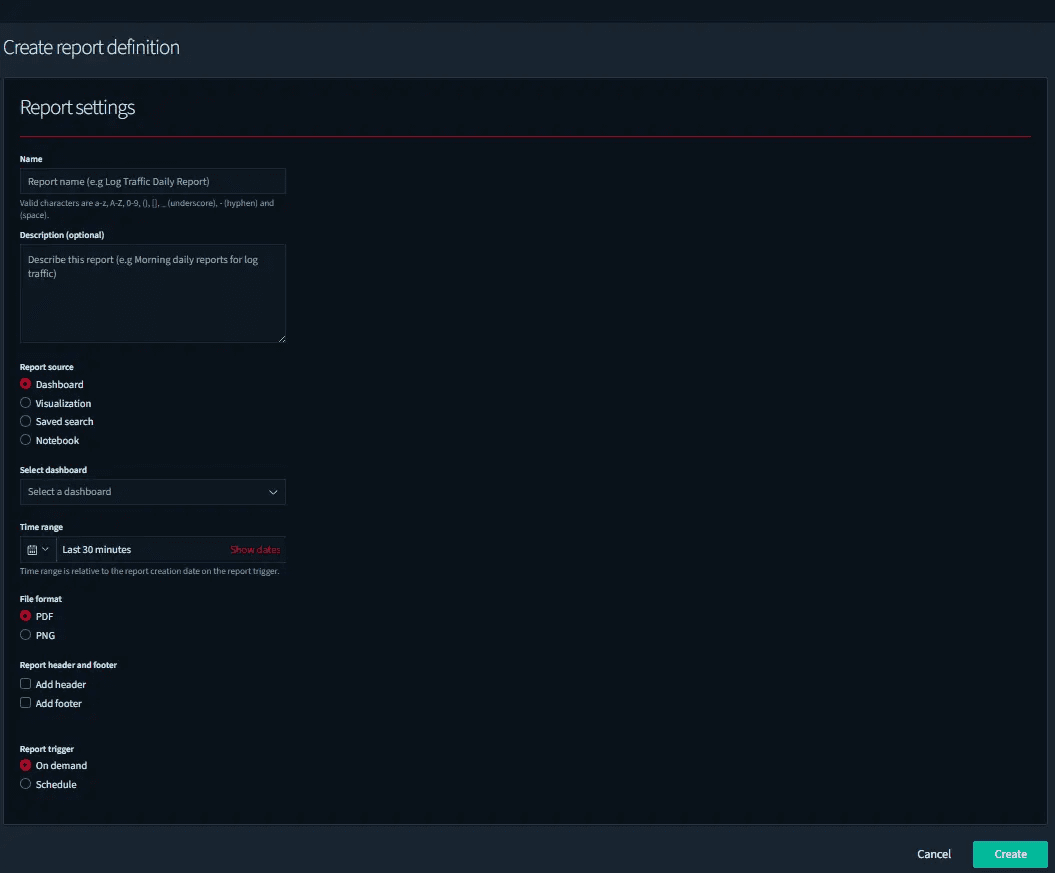
Creating a Report Definition
Report definitions are reusable report templates. Use them to define what data should be included, how the output should be generated, and whether the report should run manually or on a schedule.
Creating Reports
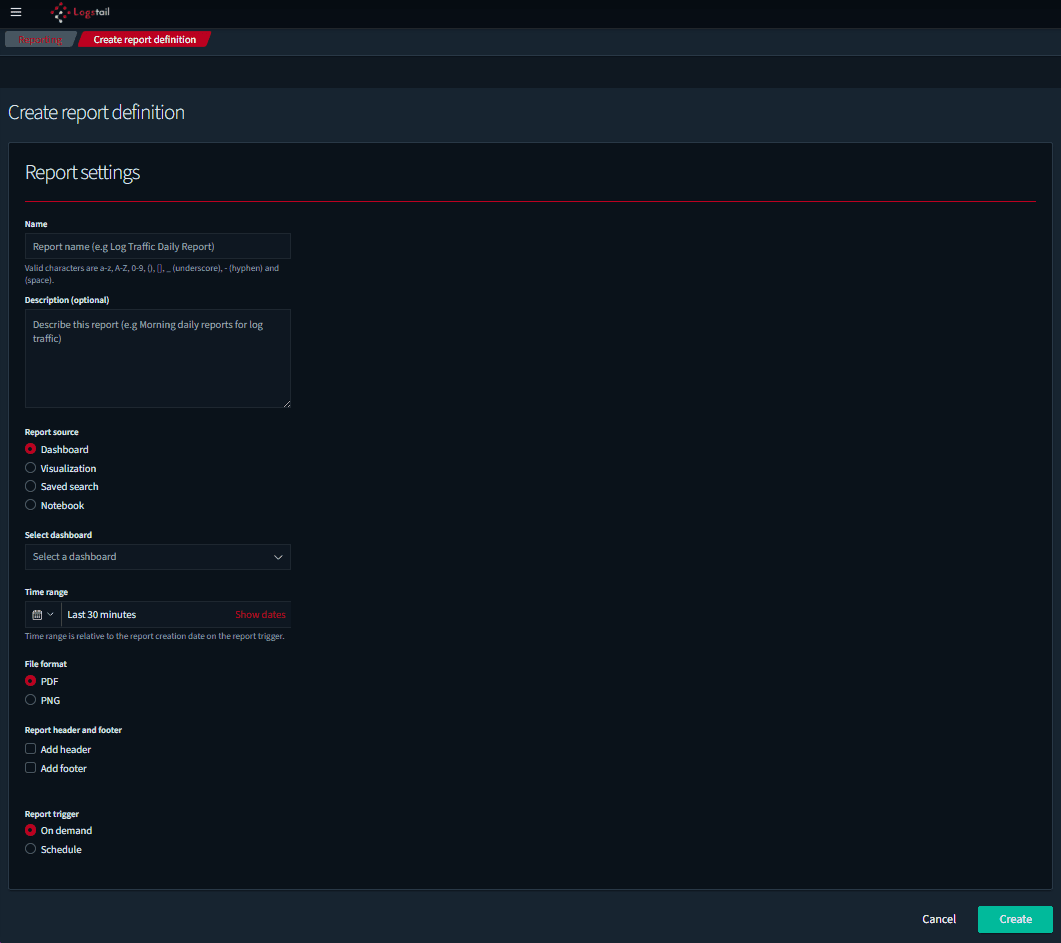
Reports can be generated manually when needed or scheduled to run automatically. Use on-demand reports for quick exports and scheduled reports for recurring operational, compliance, or leadership review.
Common Report Use Cases
Compliance evidence
Generate reports that show monitoring activity, scan history, findings, or security review evidence.
Leadership summary
Create high-level reports for stakeholders who need outcomes, trends, and risk posture without deep technical detail.
Engineering handoff
Create detailed reports that help technical teams understand findings, affected assets, and remediation context.
Recurring review
Schedule reports for weekly, monthly, or audit-driven review cycles.
Incident support
Generate reports when findings need to be attached to an investigation, ticket, or post-incident review.
Risk tracking
Use reports to compare findings and exposure trends across repeated scans or review periods.
Troubleshooting
Report has no data
- 1
Check that the selected filters are not too narrow.
- 2
Verify the selected time range contains matching events, scans, or findings.
- 3
Validate the query or source configuration.
- 4
Confirm the selected data source still exists and has available data.
Download fails
- 1
Retry the download after the report finishes generating.
- 2
Reduce the report scope or selected time range if the output is too large.
- 3
Check browser download settings or network connectivity.
- 4
Generate the report again if the file appears corrupted or incomplete.
Scheduled report did not run
- 1
Check that the schedule is enabled.
- 2
Verify the recurrence, date, time, and timezone configuration.
- 3
Confirm the source still exists and is accessible.
- 4
Review whether the report definition was changed or removed.
Report output looks incomplete
- 1
Confirm the selected report definition includes the expected fields.
- 2
Check whether filters excluded some findings or assets.
- 3
Verify the selected format supports the expected level of detail.
- 4
Use a detailed report format when remediation context is required.
Best Practices
Use clear names
Use descriptive names that identify the report purpose, source, and audience.
Validate data first
Check the source data before generating or scheduling a report.
Keep scope focused
Avoid excessive data by narrowing the time range, source, filters, or findings included.
Pick the right format
Use high-level formats for leadership review and detailed formats for remediation handoff.
Schedule recurring evidence
Use scheduled reports for compliance, governance, and recurring security review cycles.
Review before sharing
Review generated reports before sharing them outside the security or engineering team.
Protect sensitive output
Treat reports as sensitive security documents because they may contain findings, assets, and exposure details.
Keep audit copies
Retain important reports when they are needed for audit, governance, or historical evidence.